Desktop or Online
ITRSimple comes in two forms that do exactly the same job. The desktop app (Windows/Mac) keeps every byte of data in a local file on your computer and works fully offline. The online version (app.itrsimple.com) keeps the same data on encrypted infrastructure in India so you can reach it from any machine and share it across your team. The screens, the computation engine, the ITR JSON export - all identical. This guide uses the online screens; anything that only applies to one edition is flagged inline.
- Desktop: data stored locally, offline-first, recovery via an admin PIN, licence activation on the machine.
- Online: data stored encrypted in India, multi-user, uploaded documents are parsed then discarded - never kept.
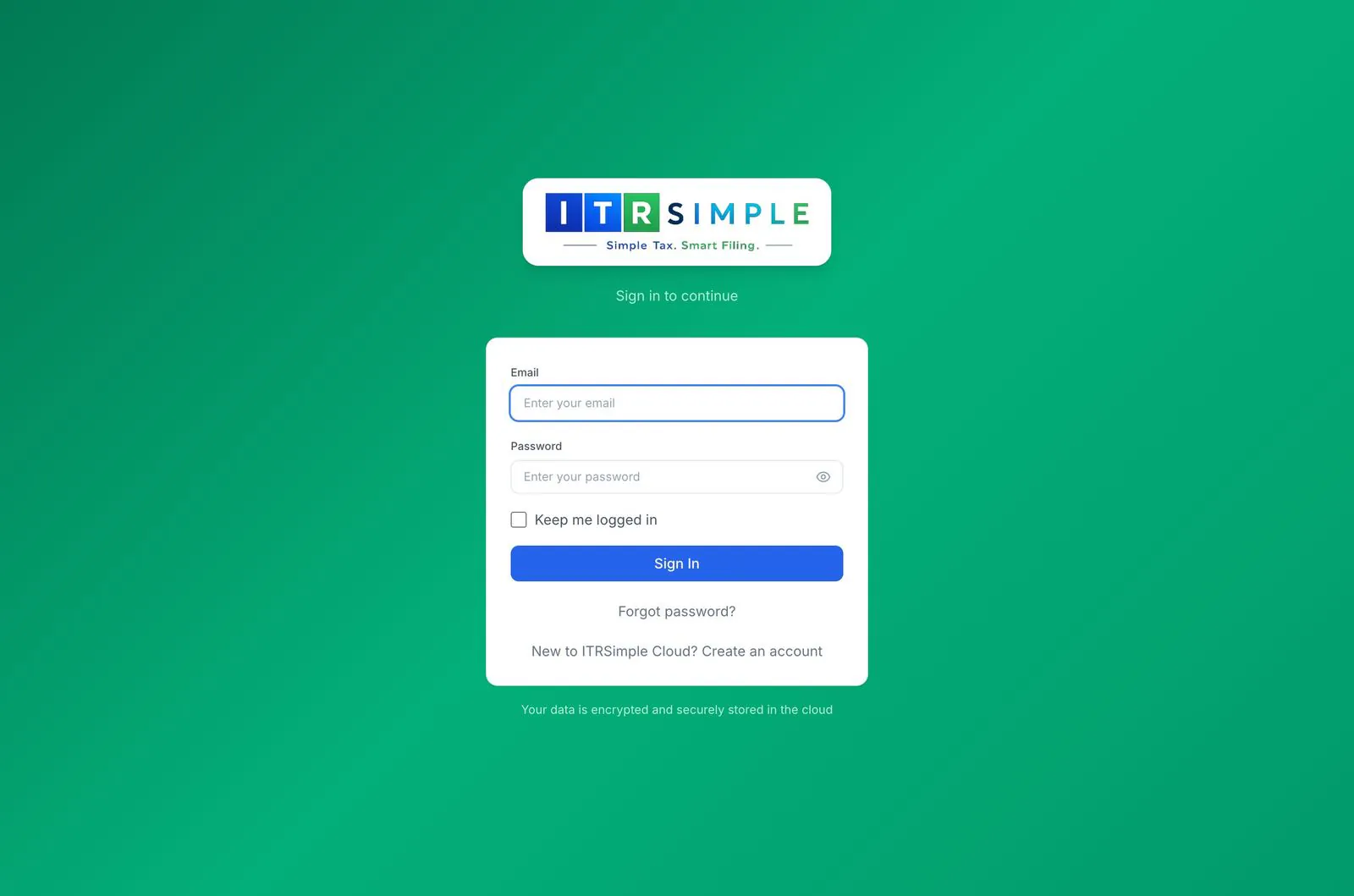
Sign In
The entry point for every returning user. Enter your email and password to reach your workspace - tick "Keep me logged in" to skip this on the same device next time. On the desktop app the same screen asks for a username instead of an email, and there is no cloud account behind it.
Create Your Account
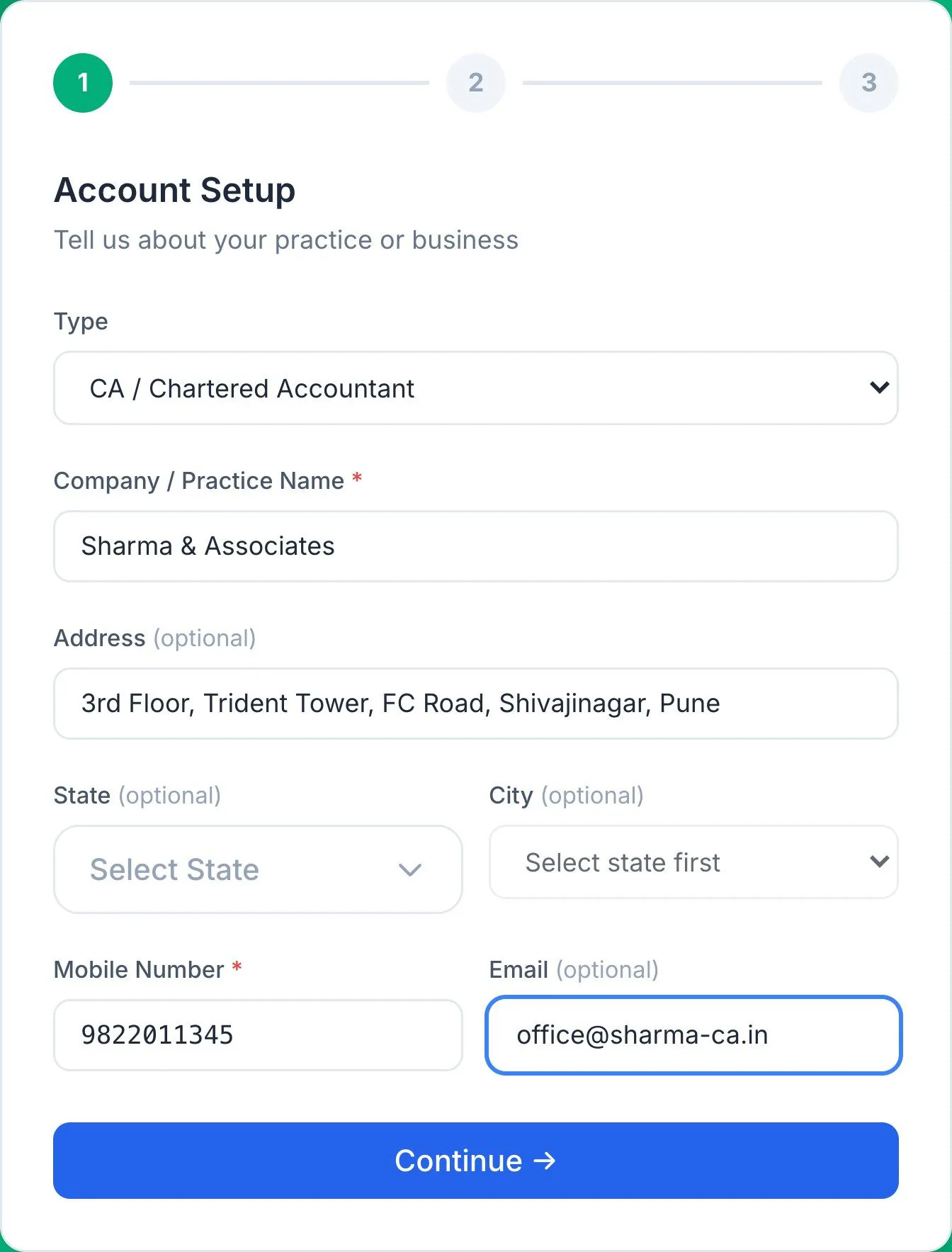
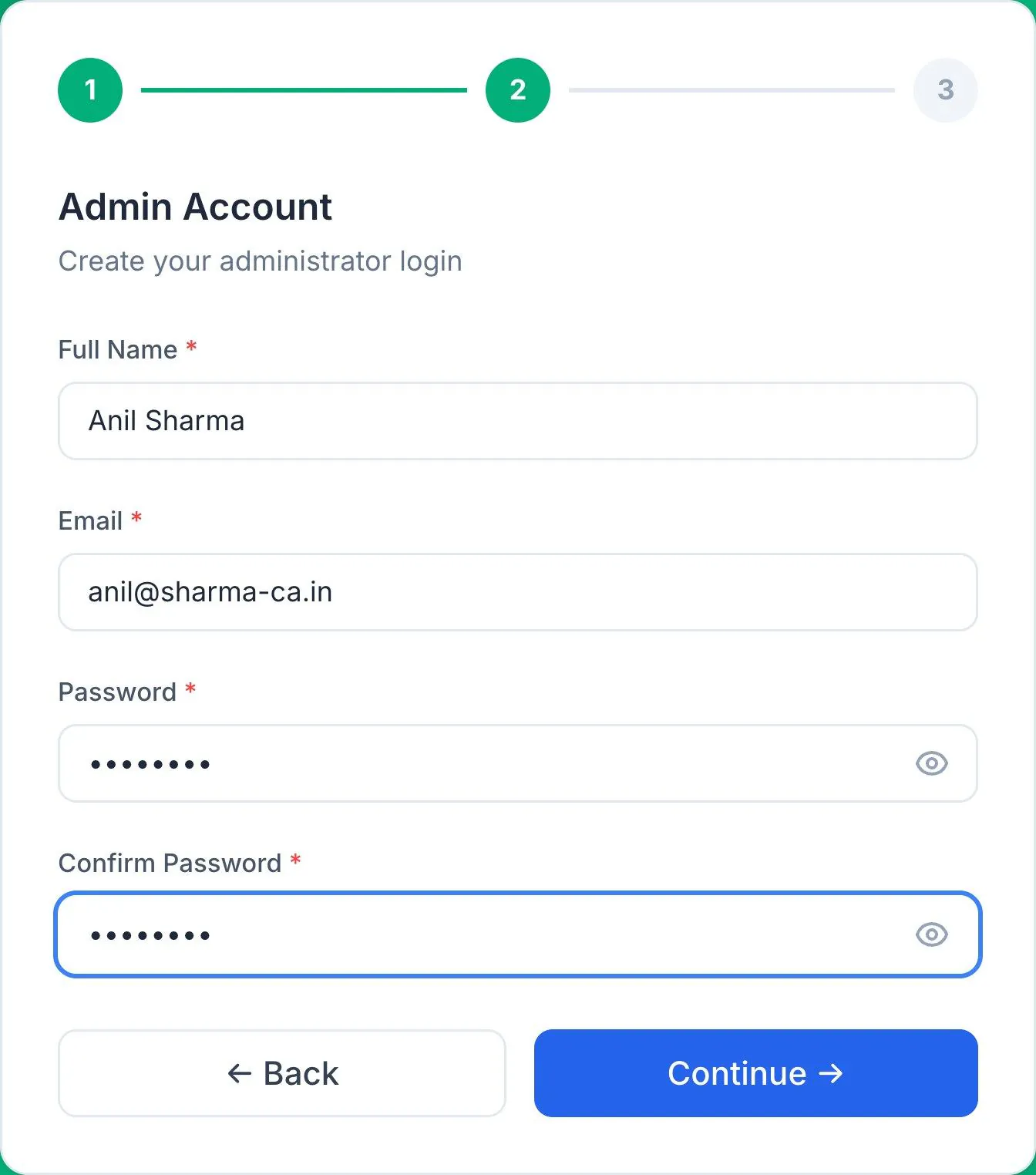
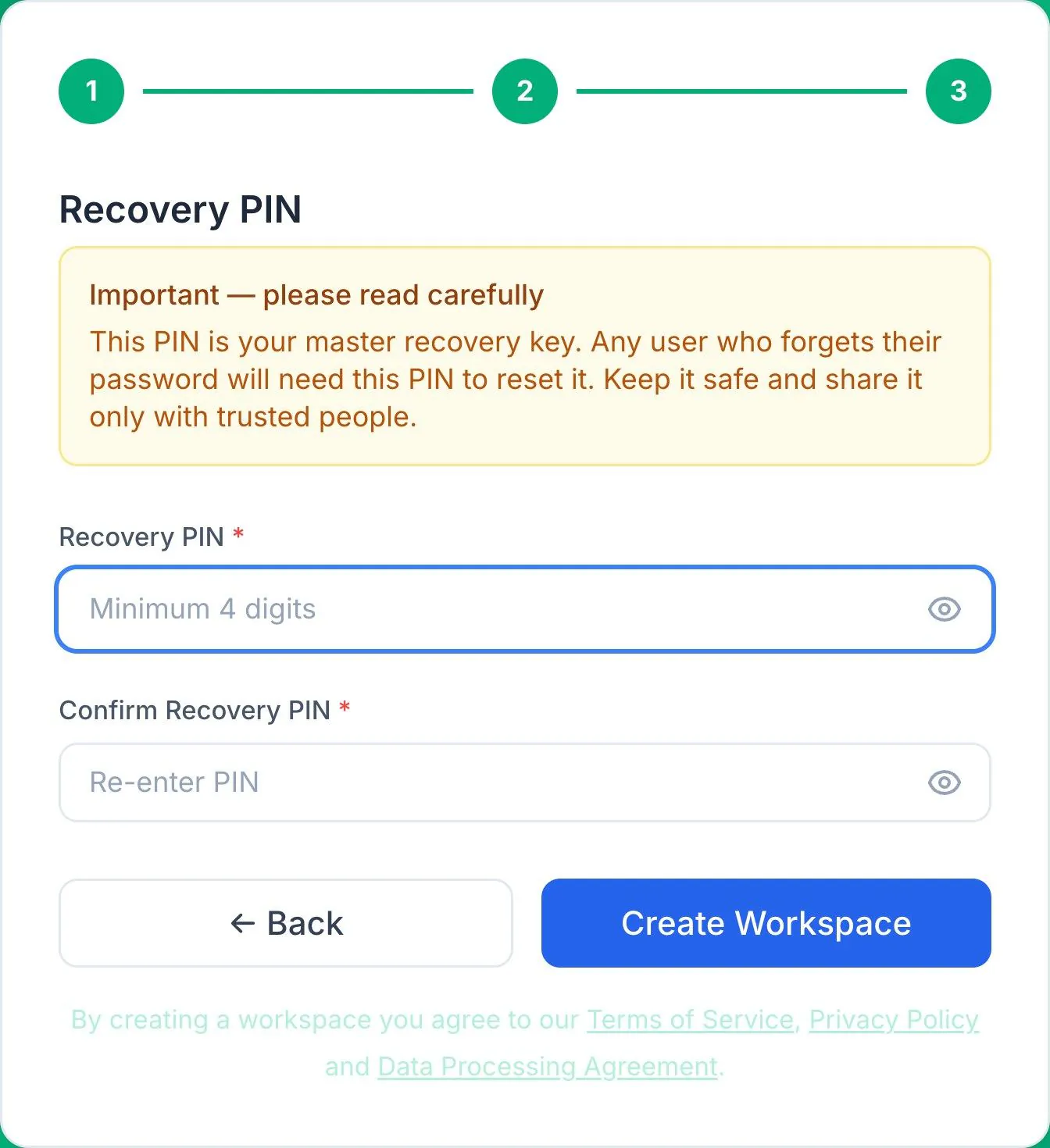
The one-time registration for your firm or practice, shown the first time you use ITRSimple. A short three-step setup: describe the practice (CA firm, accountant, or individual) with its name and contact details, create the administrator login, and set a master Recovery PIN used later to reset any user's forgotten password. After this, every launch goes straight to Sign In and, once inside, you add your clients.
- Step 1 - Account Setup: practice type, name, address, contact mobile / email.
- Step 2 - Admin Account: full name, email / username, and password for the first user (always an Admin).
- Step 3 - Recovery PIN: a master PIN to reset any user's password later. You also confirm the Terms, Privacy Policy and Data Processing Agreement here.
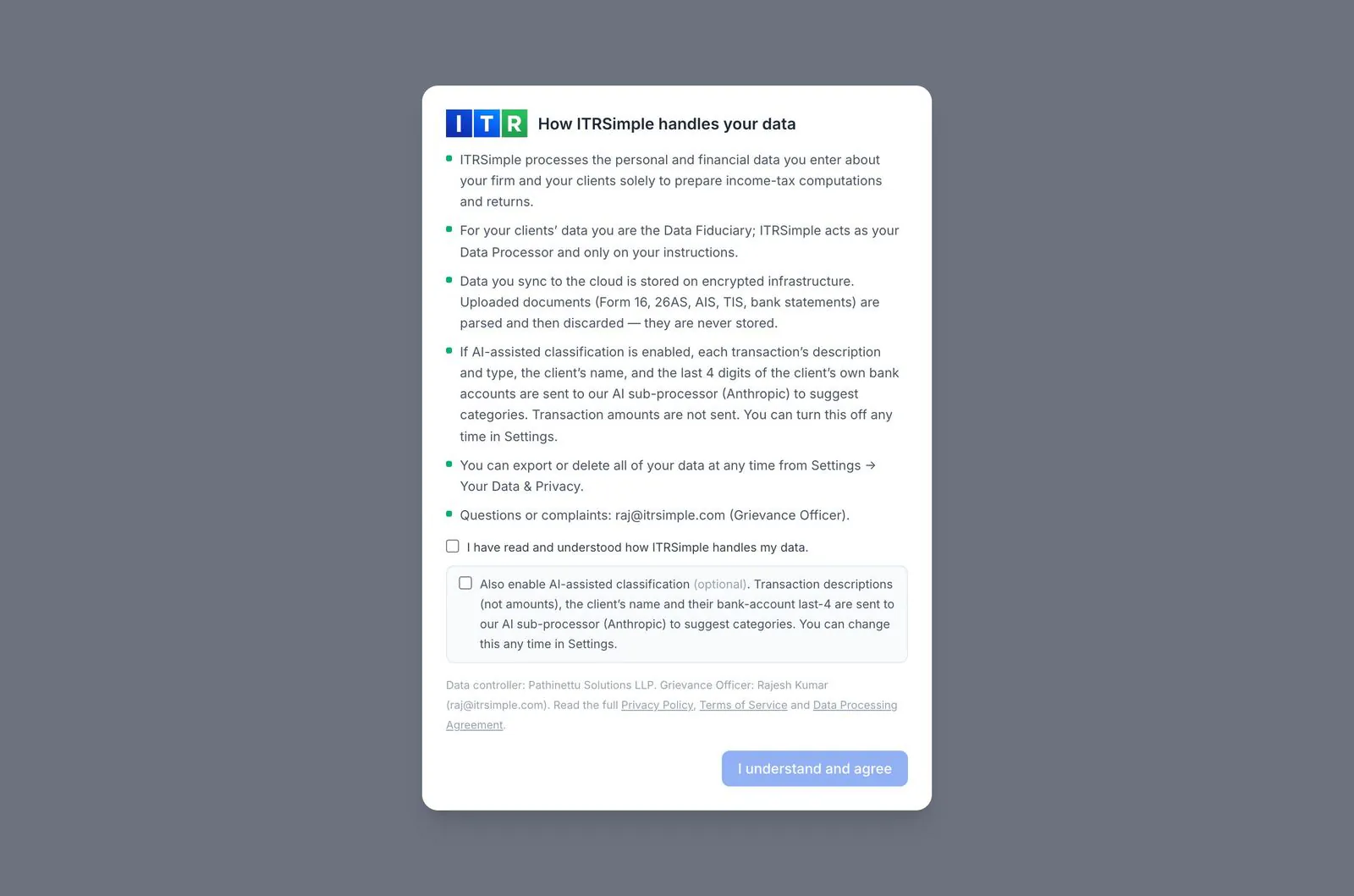
How Your Data Is Handled
Before the app opens for the first time - and again whenever the privacy notice materially changes - ITRSimple shows a plain-language summary of what it does with your data under the Digital Personal Data Protection Act, 2023. You must tick "I have read and understood" to continue. AI-assisted classification is a separate, optional tick that stays off unless you choose it.
- Your data is used only to prepare income-tax computations and returns.
- For your clients' data you are the Data Fiduciary; ITRSimple acts as your Data Processor.
- Uploaded documents (Form 16, 26AS, AIS, TIS, bank statements) are parsed and then discarded - never stored.
- With AI on, only a transaction's narration and type, the client's name and their bank-account last-4 are sent to the AI sub-processor - never the amounts.
- Export or delete all of your data any time from Settings → Your Data & Privacy.
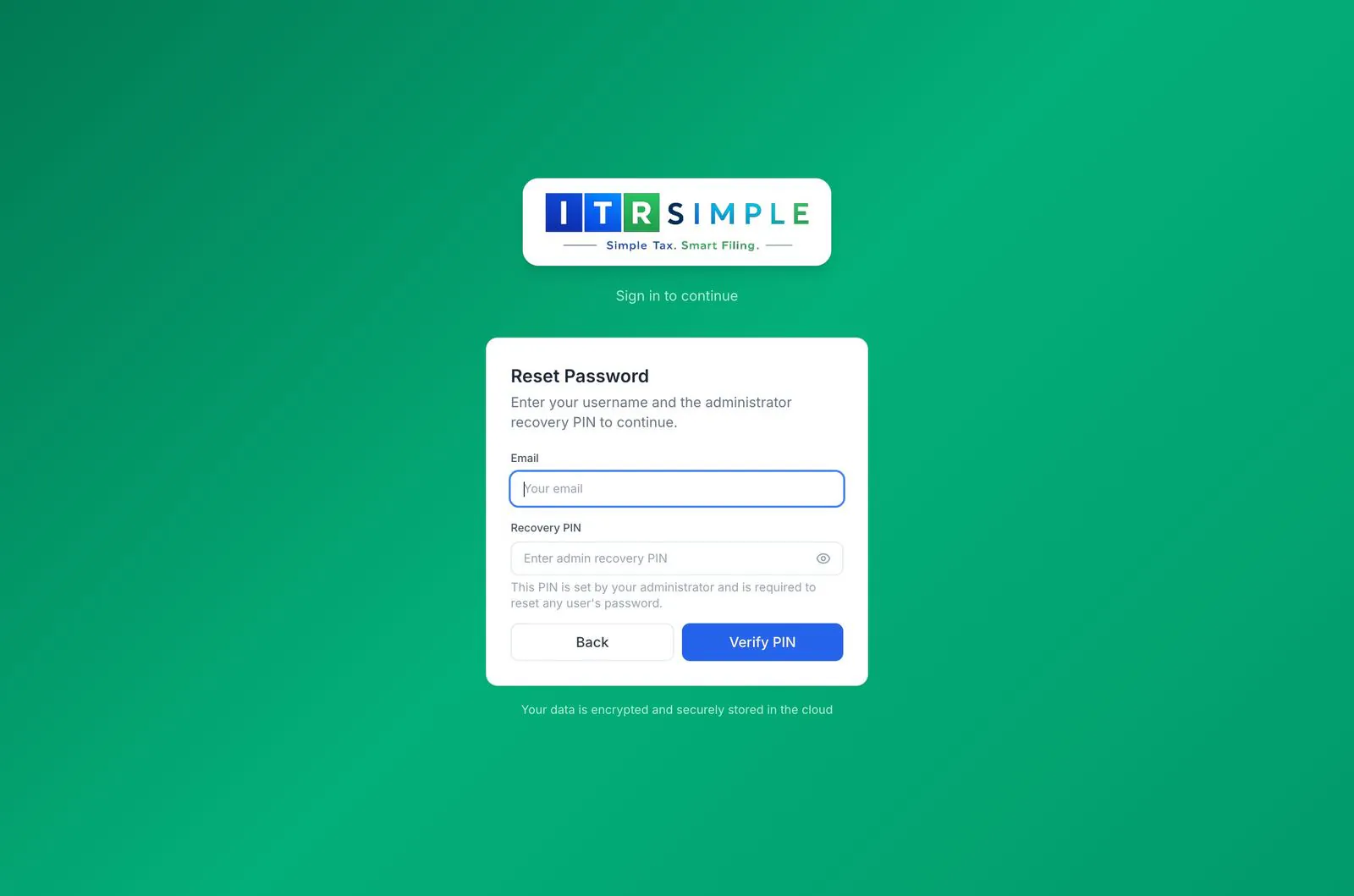
Forgot Password
Password recovery works through a Recovery PIN - a master PIN set by the practice administrator during setup - rather than an email reset link. Enter your email (username on desktop) and the admin PIN, verify, then set a new password.
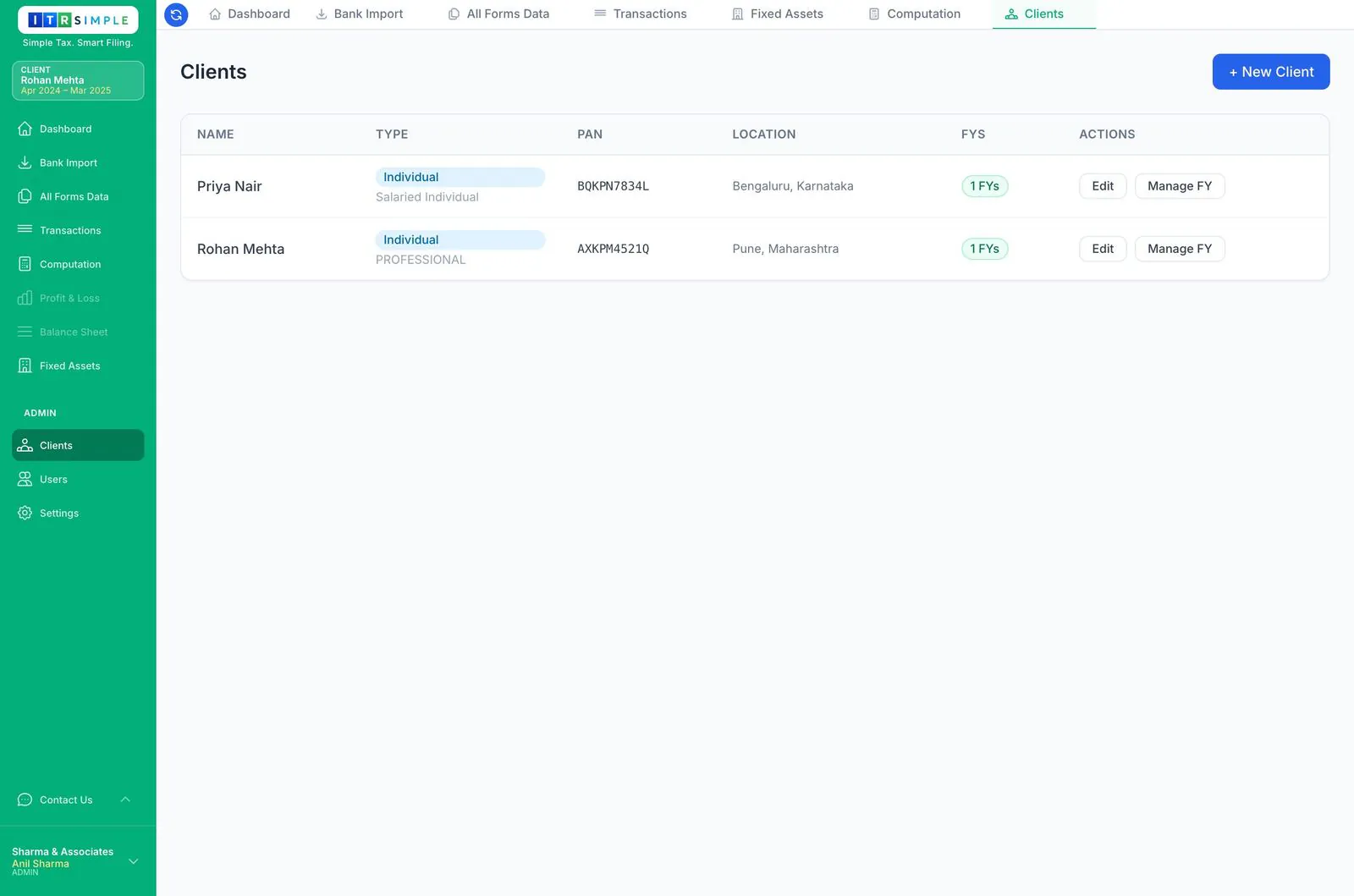
Clients
Once your account is set up, the first thing you do is add clients. The Clients screen (under ADMIN in the sidebar) is the client book for the whole practice - every client with their PAN, type, location and how many financial years are on file. + New Client opens the setup wizard; Edit reopens that same wizard on any tab for an existing client, and Manage FY jumps straight to their financial-year list.
New Client Wizard
Creating a client runs through seven tabs. Only Client Info is required to save the client - the other six unlock once it's saved and can be filled now or any time later (the same wizard reopens from Edit on the Clients list). Every tab shapes how ITRSimple classifies transactions and computes tax for that client, so it's worth a minute on each.
1 · Client Info
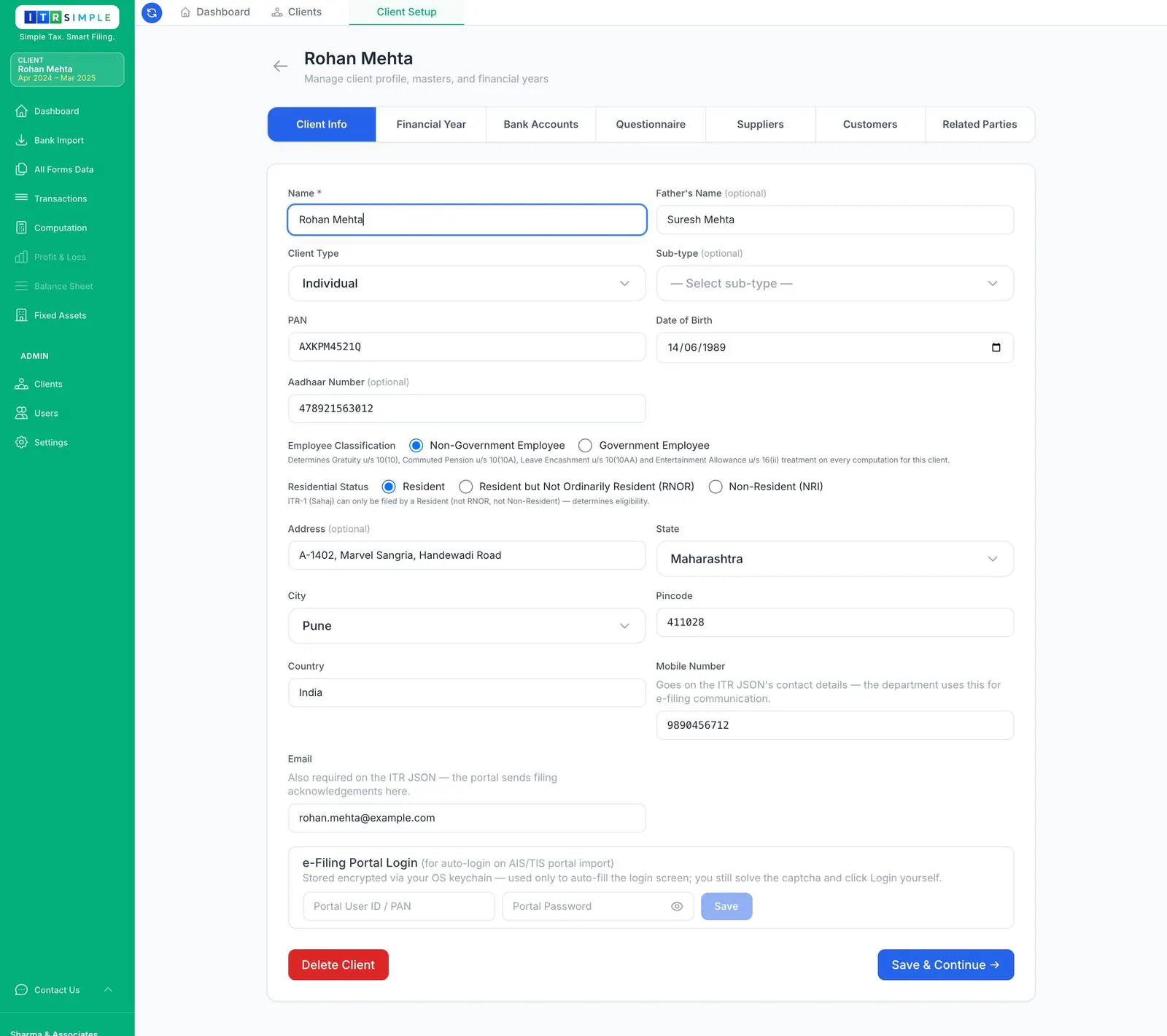
Identity and e-filing essentials: legal name, PAN, date of birth, Aadhaar, father's name, residential status and employee classification, plus an optional e-filing portal login (stored in your OS keychain) that auto-fills the portal during AIS / TIS import. Why it matters - residential status decides ITR-1 eligibility; the Government / Non-Government choice sets the gratuity, commuted-pension and leave-encashment exemption limits used on every computation for this client; PAN, DOB, mobile and email are written straight into the ITR JSON the department reads. You also give the DPDP client-consent attestation here.
2 · Financial Year
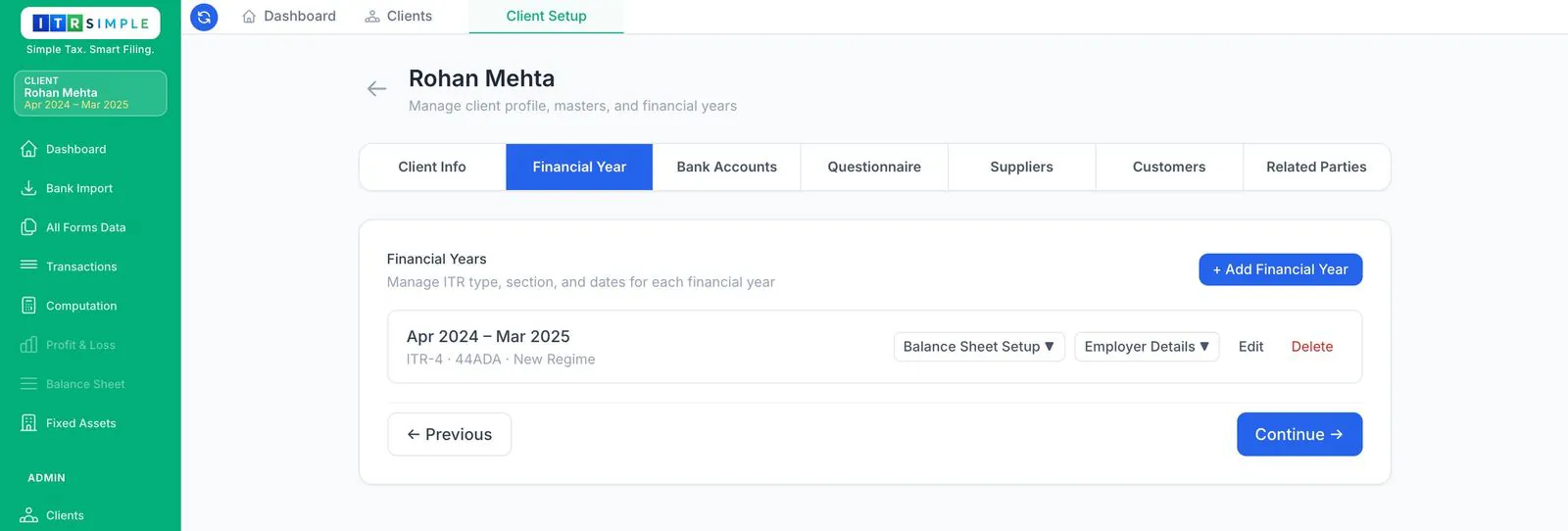
One row per year, each with its ITR type, section (e.g. 44ADA), regime and exact start/end dates, plus per-year Balance Sheet Setup and Employer Details sheets. Why it matters - this is what tells the computation engine which form and which rules to apply for that year. A client can carry several years side by side, each on a different form or regime.
3 · Bank Accounts
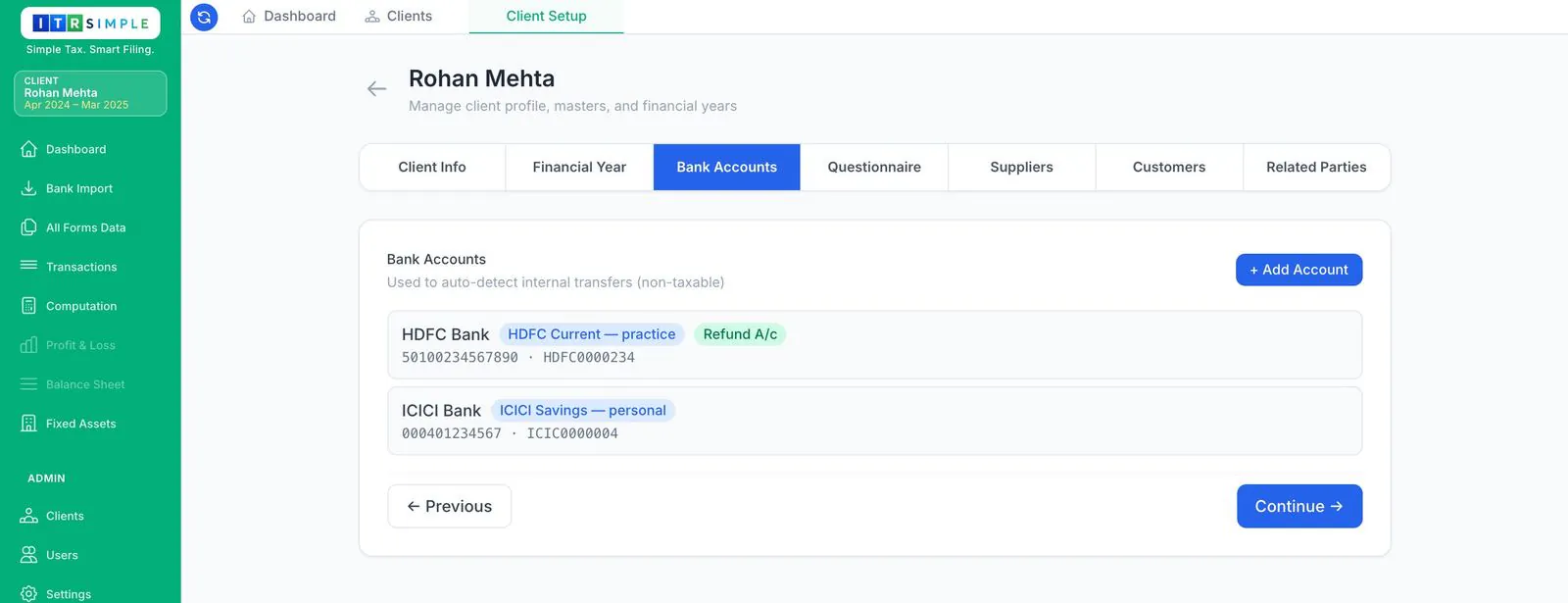
Every bank account the client holds - bank name, number, IFSC, a nickname - with one marked as the refund account. Why it matters - transfers between the client's own accounts are then auto-detected as non-taxable internal transfers instead of being counted as income or expense, and the refund account pre-fills the ITR JSON.
4 · Questionnaire
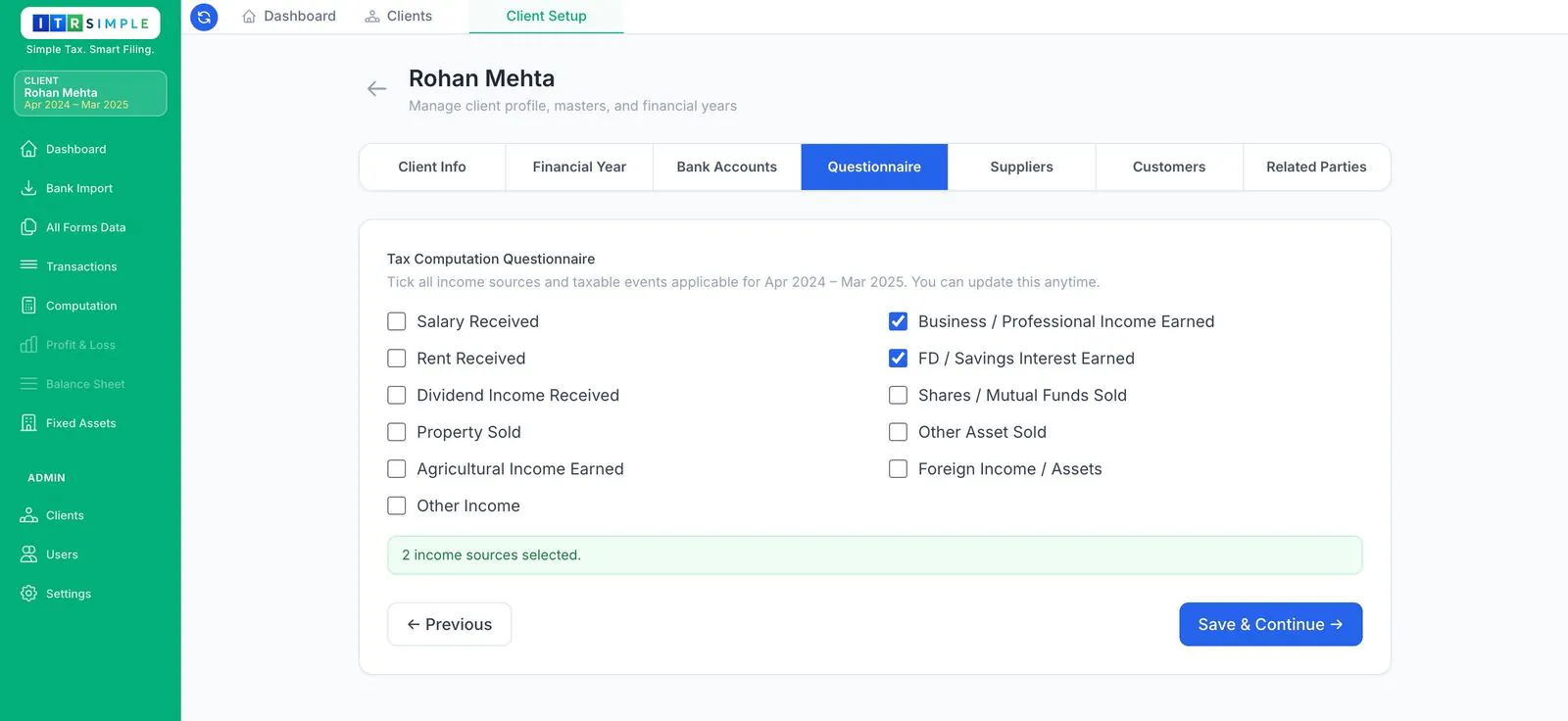
Tick the income sources and taxable events that apply this year - salary, business / professional income, rent, FD / savings interest, dividends, share sales, property sales, foreign income, and so on. Why it matters - it drives the Dashboard's readiness checklist and raises a warning when something you ticked has no data classified against it - a guard against missed income.
5 · Suppliers
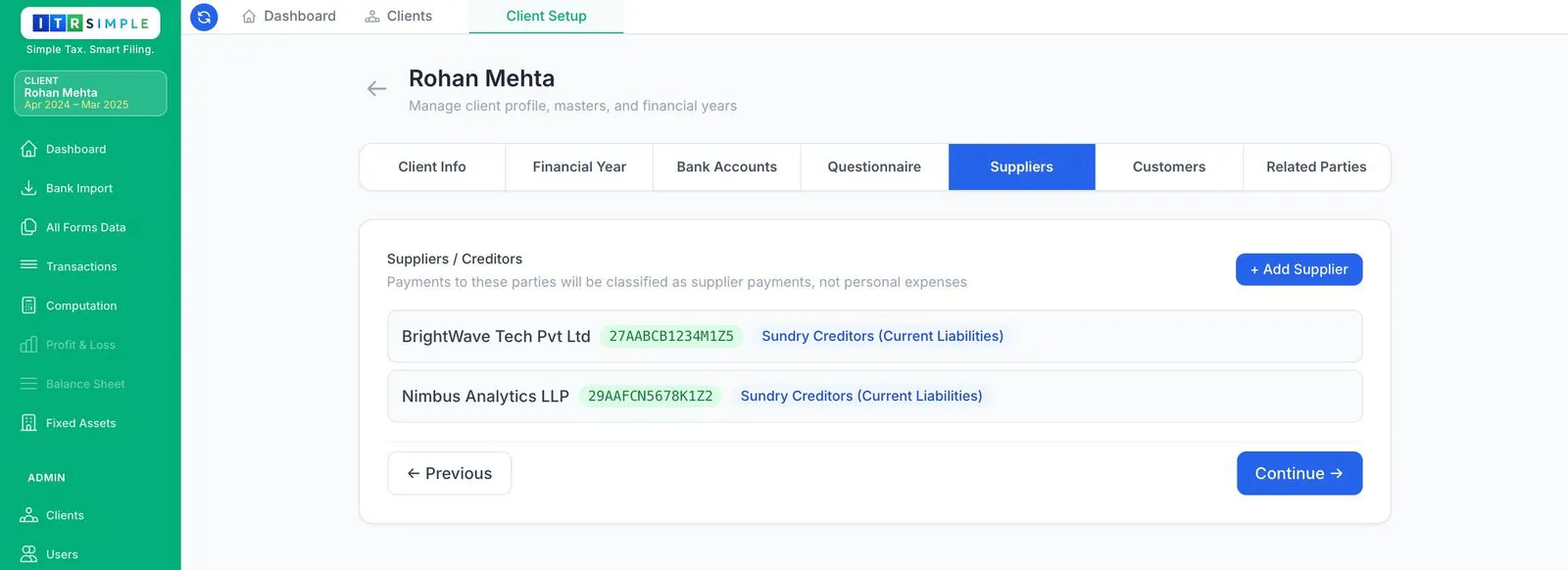
Vendors and creditors the client pays, with GSTIN and ledger group (Sundry Creditors). Why it matters - a payment to a listed supplier is classified as a business supplier payment, not a personal expense - which sharpens auto-classification and keeps the P&L honest.
6 · Customers
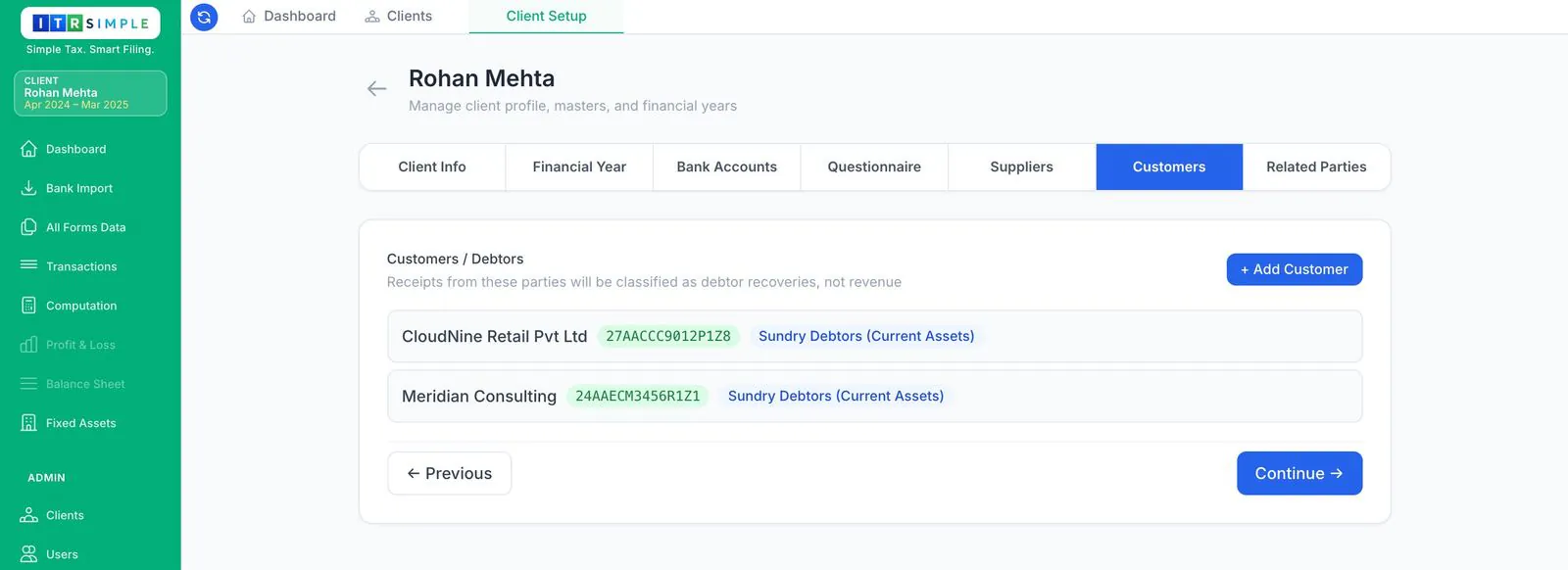
Debtors the client invoices, with GSTIN and ledger group (Sundry Debtors). Why it matters - a receipt from a listed customer is treated as a debtor recovery against an existing balance rather than fresh revenue, so income isn't double-counted.
7 · Related Parties
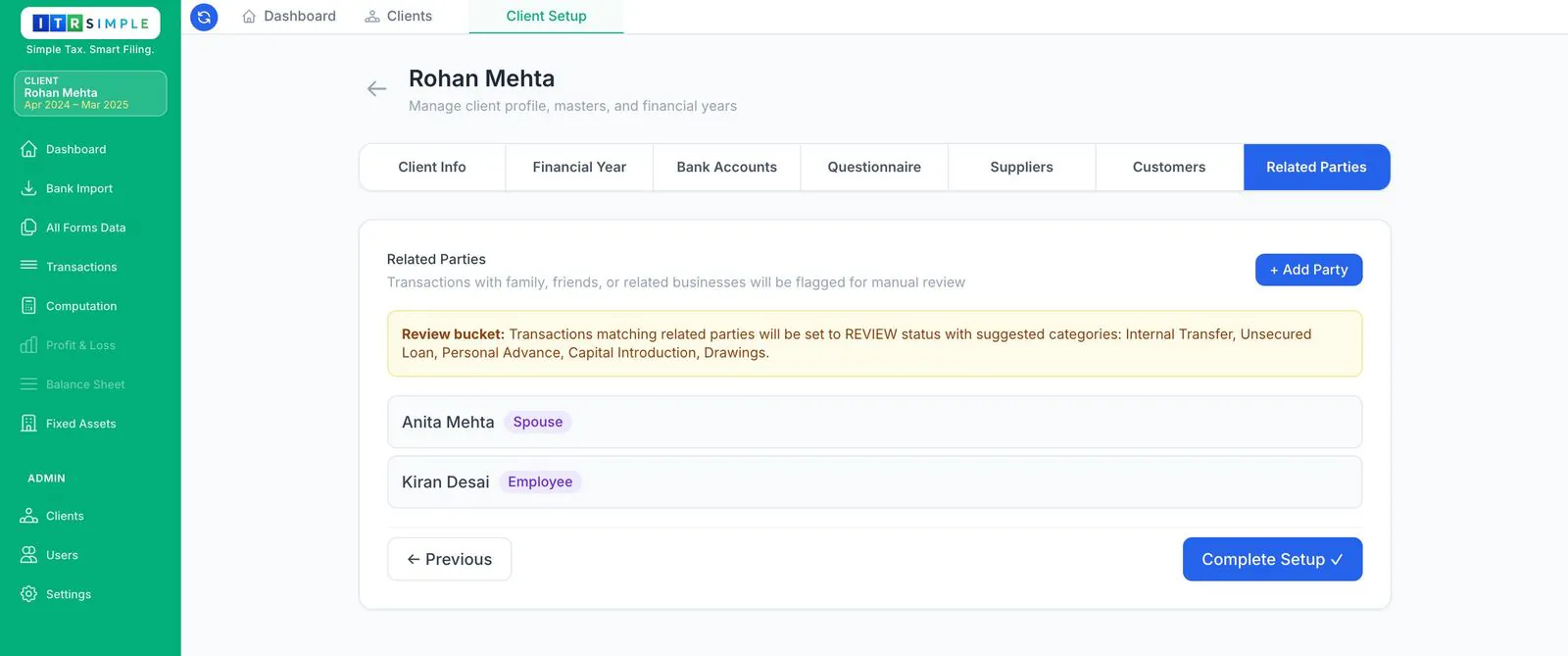
Family, friends and related businesses, each with a relationship label. Why it matters - any transaction matching a related party is forced to Needs Review with suggestions like Internal Transfer, Unsecured Loan, Personal Advance, Capital Introduction or Drawings - so loans and capital movements between related parties are never silently booked as income or expense. This last tab finishes with Complete Setup.
Choosing a Client & Year
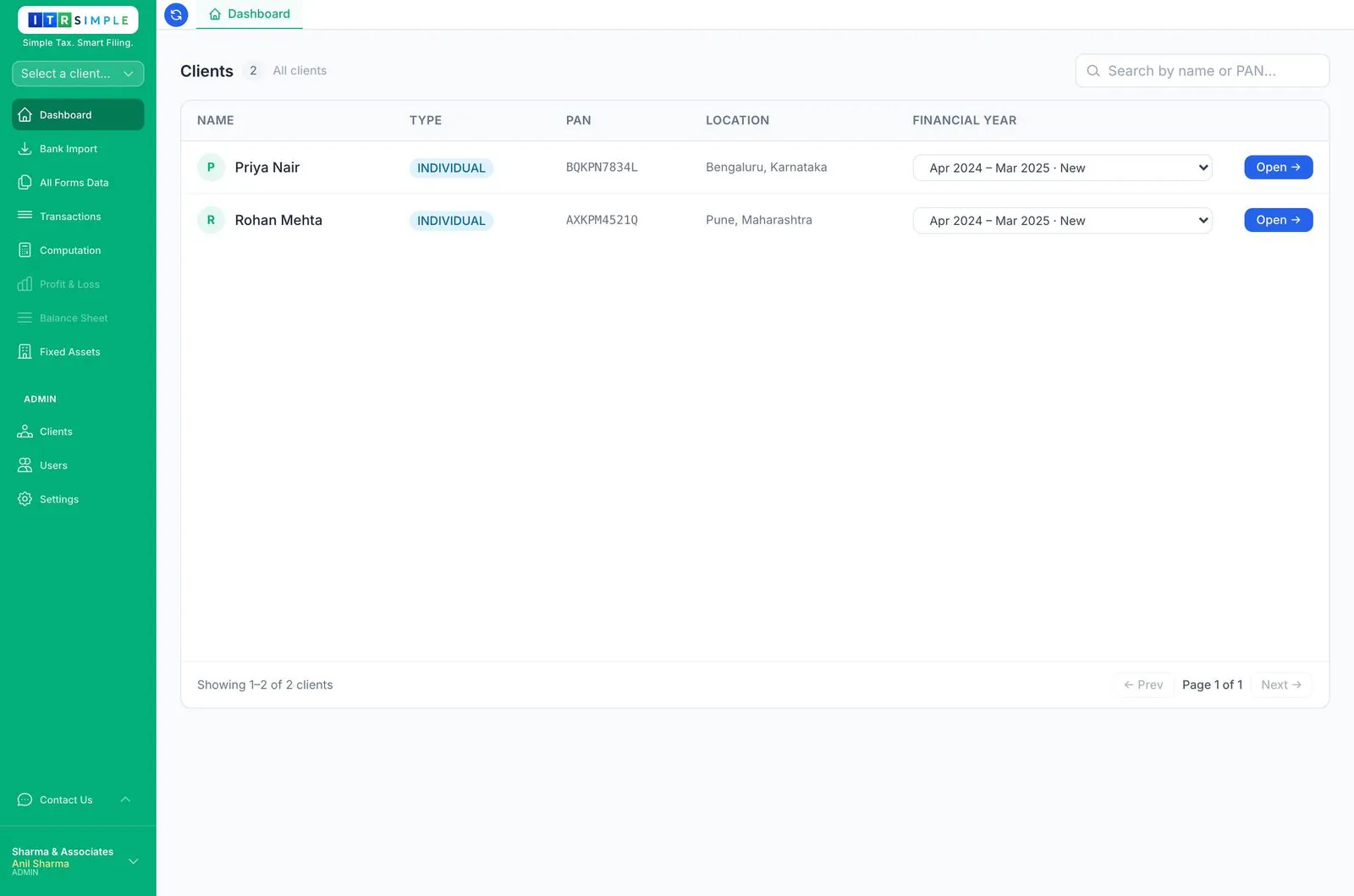
Right after sign-in you land on the client picker. Every client in the practice is listed with their PAN and location; pick the financial year from the dropdown and hit Open → to load that client's workspace. Search by name or PAN when the list gets long. Clicking the client card in the top-left of the sidebar at any time brings you back here to switch.
Dashboard
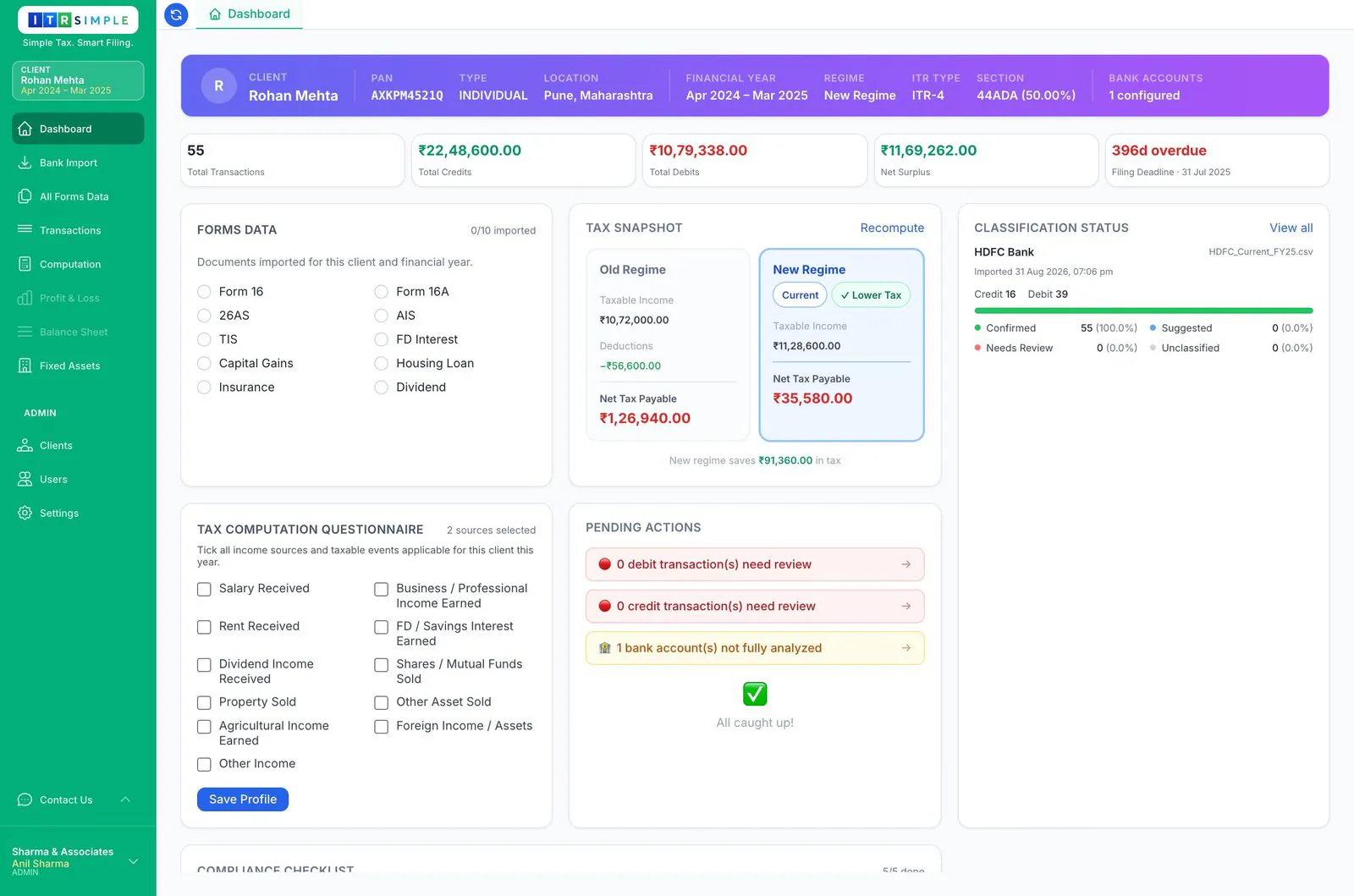
The home screen for the selected client and year - a snapshot of where things stand. Transaction count, credits / debits and net surplus across the top; then a Forms Data checklist, an Old vs New regime tax snapshot, classification progress, and a Pending Actions list (transactions needing review, un-analysed bank accounts, computation not yet run). The Tax Computation Questionnaire on the left is where you tick which income sources apply this year.
- Tax Snapshot compares Old and New regime side by side and flags the lower one.
- Classification Status shows Confirmed / Suggested / Needs Review / Unclassified at a glance.
- Pending Actions link straight through to the screen that clears each item.
Bank Import
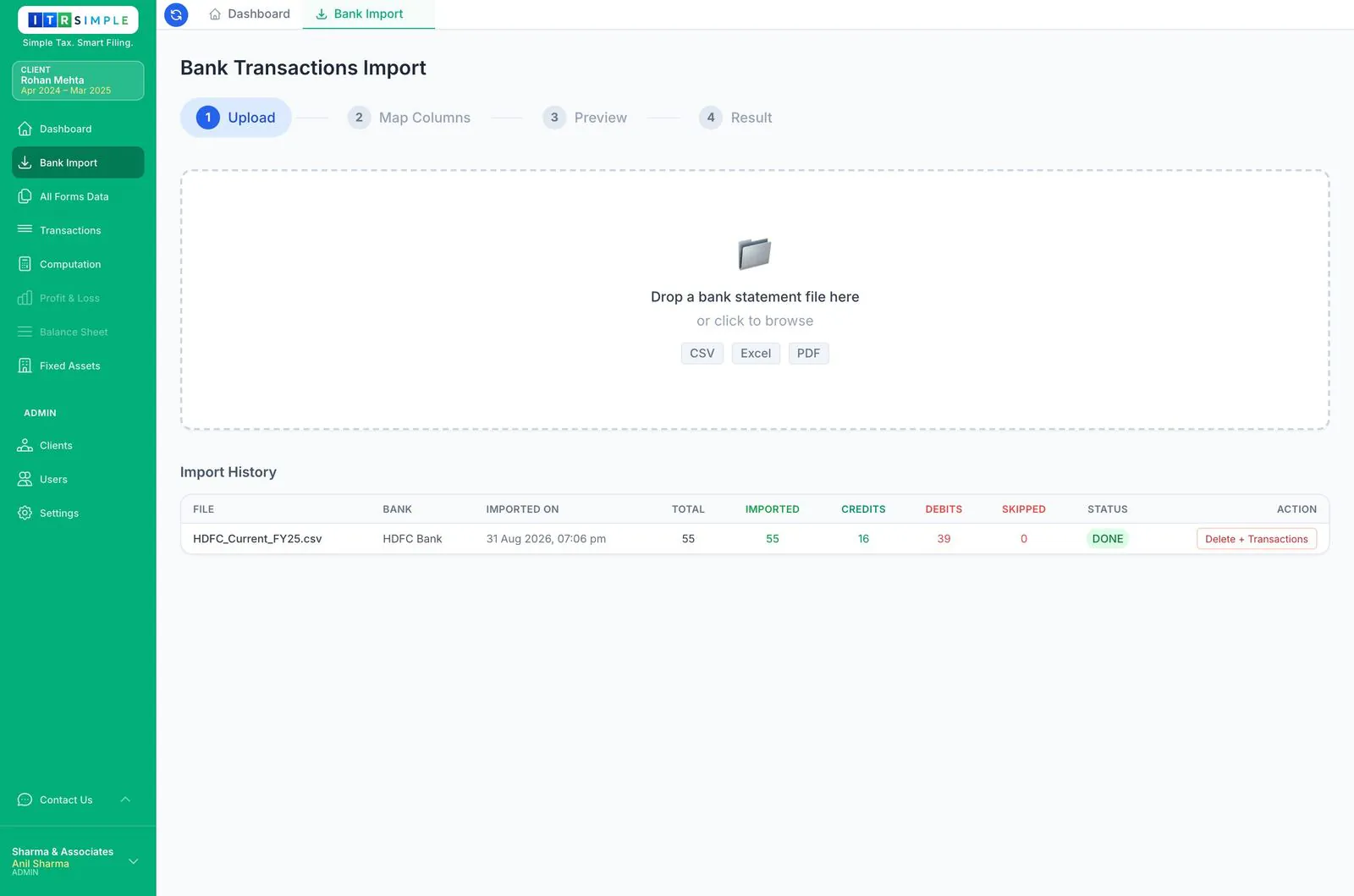
Bring bank statements in as CSV, Excel or PDF through a four-step wizard: Upload, Map Columns, Preview, Result. ITRSimple auto-detects the bank from the file layout, parses every row, and flags duplicates or malformed rows instead of silently dropping them. Import History keeps a per-file log with a choice to remove just the log entry or delete the log and its imported transactions together.
All Forms Data
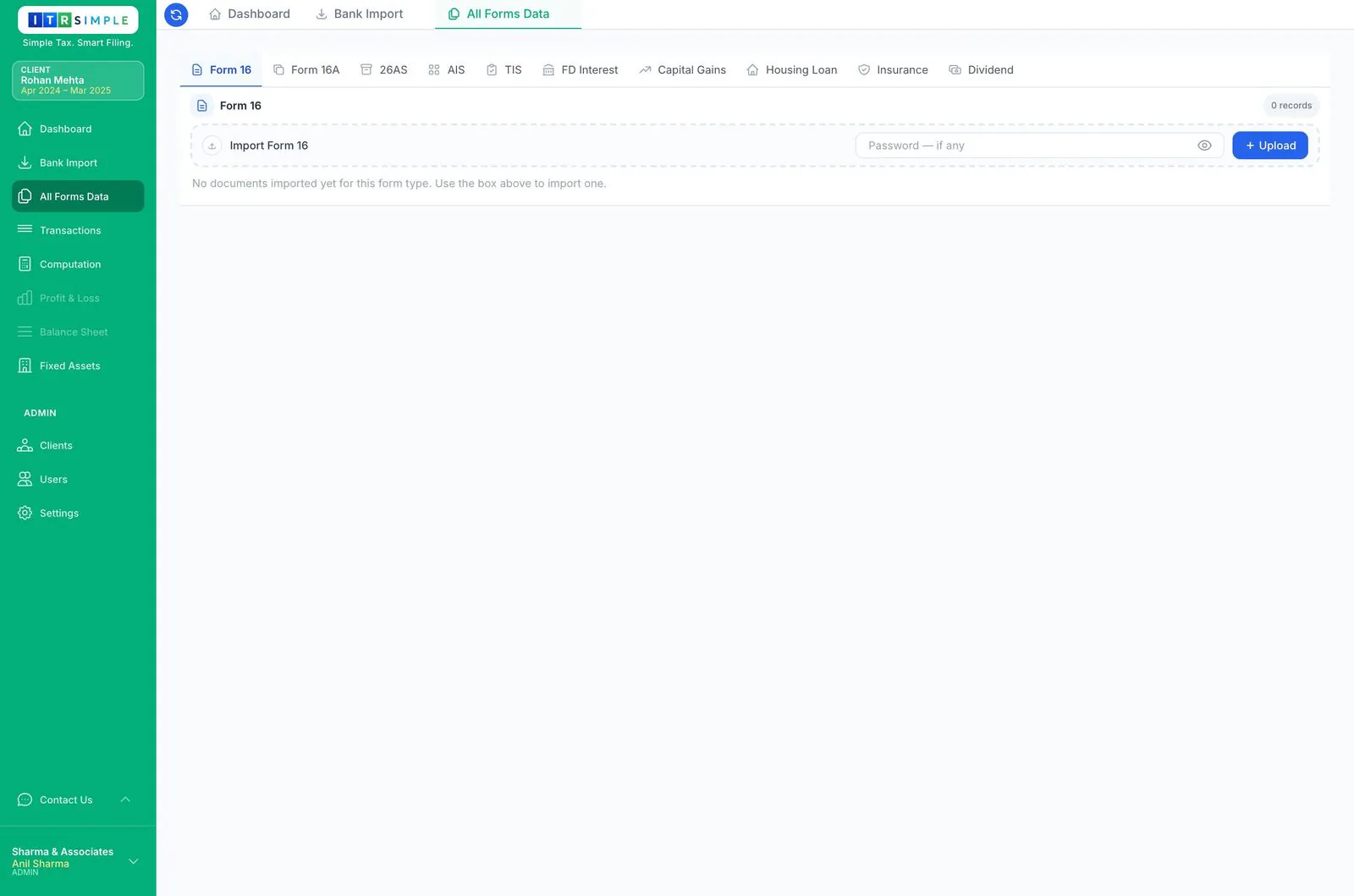
One place for every supporting document beyond bank statements: Form 16, Form 16A, 26AS, AIS, TIS, FD interest certificates, capital-gains statements, housing-loan certificates, insurance and dividend statements. Upload with a password if the PDF is protected - ITRSimple unlocks it, extracts the figures, reconciles them against imported transactions, and then discards the file.
Transactions
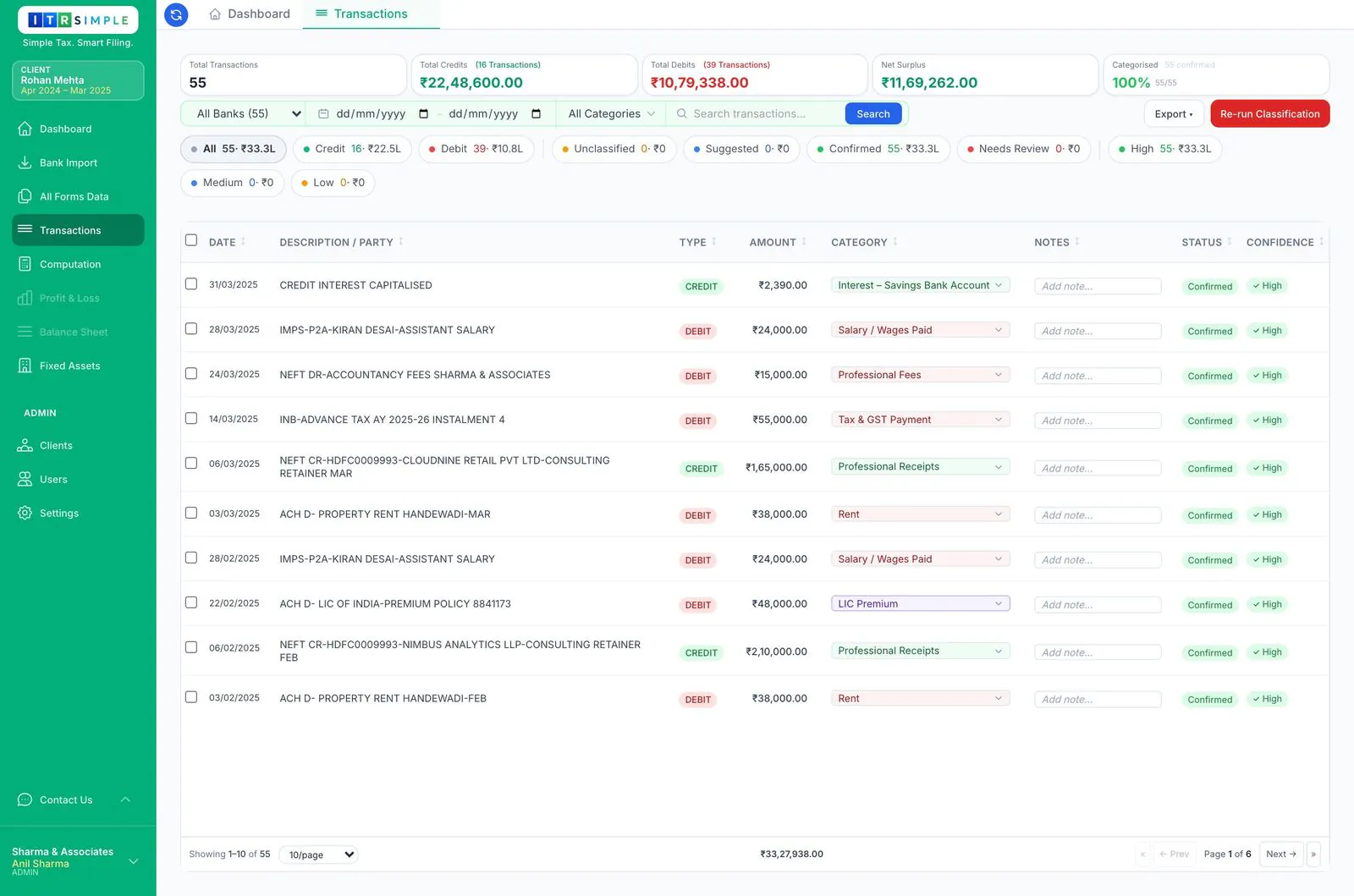
The full transaction ledger for the selected client and year. Filter by bank, credit / debit, classification status (Unclassified, Suggested, Confirmed, Needs Review) or confidence (High / Medium / Low). Every row gets a category inline - auto-suggested by the classification rules or set by hand - plus a free-text note. The summary strip up top tracks how much of the ledger is categorised and confirmed.
Computation
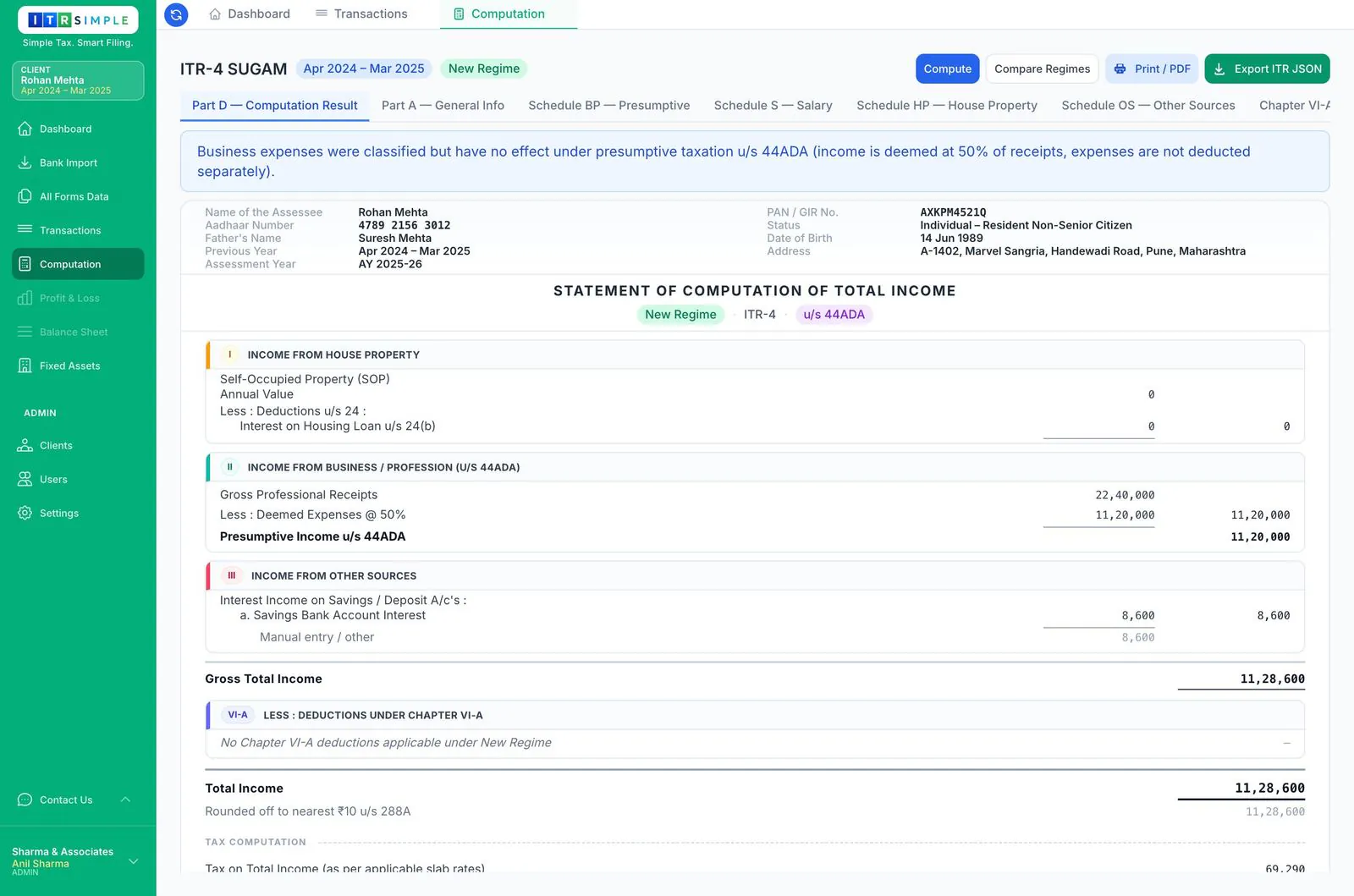
The heart of the app: a full, department-format Statement of Computation of Total Income for the selected ITR form - House Property, Business / Profession (or presumptive u/s 44AD / 44ADA), Salary, Other Sources, Chapter VI-A deductions, tax on total income, rebate, cess, interest u/s 234A/B/C, late fee u/s 234F and tax credits - ending in the exact refund or payable figure. Switch schedules from the tab bar, Compare Regimes side by side, or Export ITR JSON in the department's e-filing schema.
- Advance tax and TDS/TCS credits are read from AIS / 26AS / manual tax entries - not from bank narration - so nothing counts twice.
- Advisories explain regime-specific behaviour, e.g. that classified business expenses have no effect under 44ADA.
- Print / PDF produces a clean computation statement on the practice letterhead.
Fixed Assets
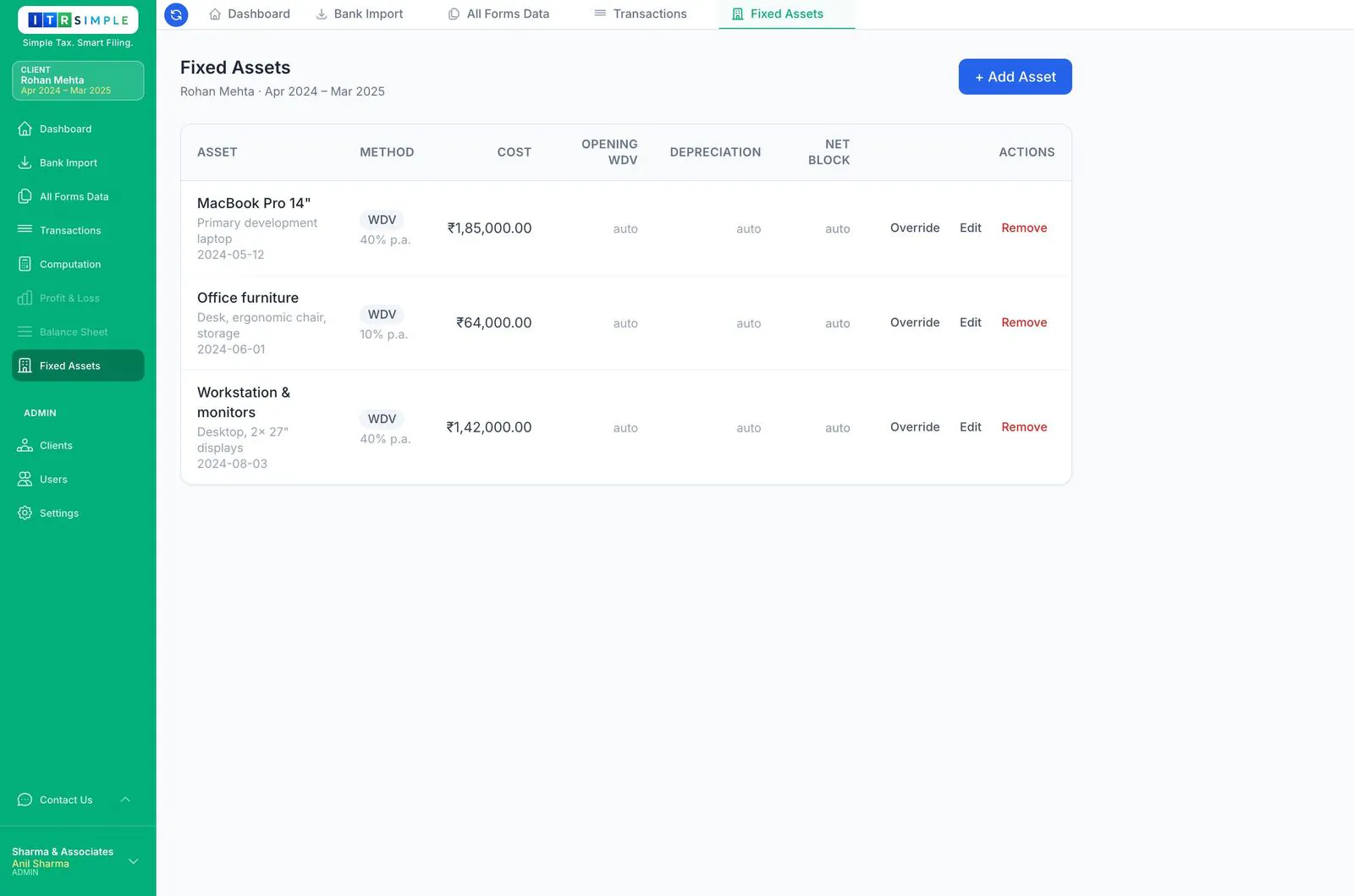
A depreciation register for the client's assets - laptops, furniture, equipment - recording cost, method (WDV / SLM), rate and purchase date. ITRSimple carries the written-down value year over year and feeds depreciation into the business / professional income computation for clients who file on actuals. You can override the computed opening WDV, depreciation or net block per year where needed.
Settings
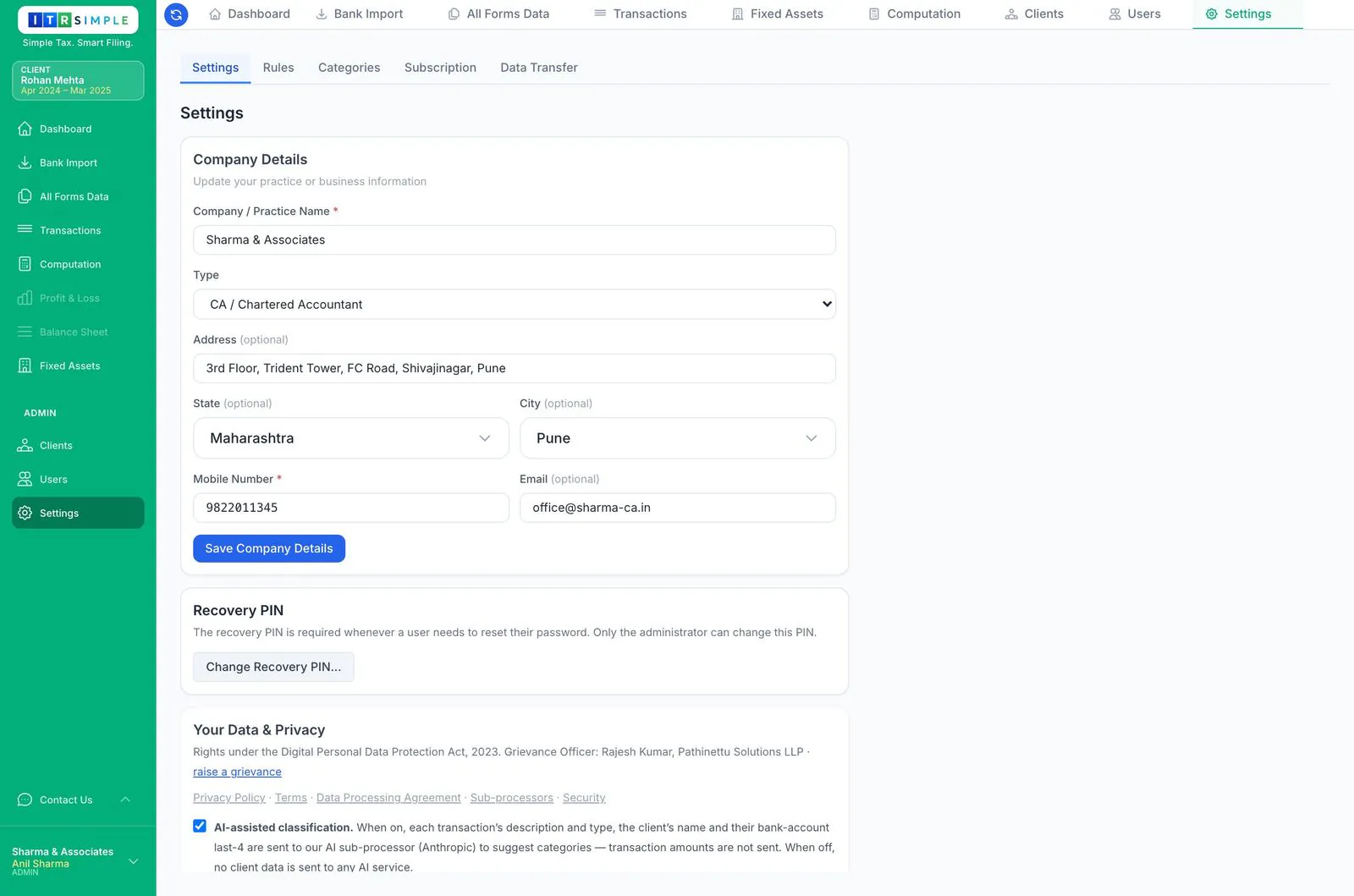
The Settings area groups everything administrative behind a row of tabs. The first tab holds Company Details (practice name, type, address, contact), the Recovery PIN (admin-only, used for password resets), Application Defaults (the financial year, ITR type, presumptive percentage and large-debit alert threshold pre-filled for new work), an AI Prompts panel where an admin can review or override the wording sent to the classification model, and two destructive tools: Reset Client Data wipes transactional data for every client while keeping the company, users, client list, categories, rules and licensing; Factory Reset wipes everything and returns to first-time setup.
Your Data & Privacy
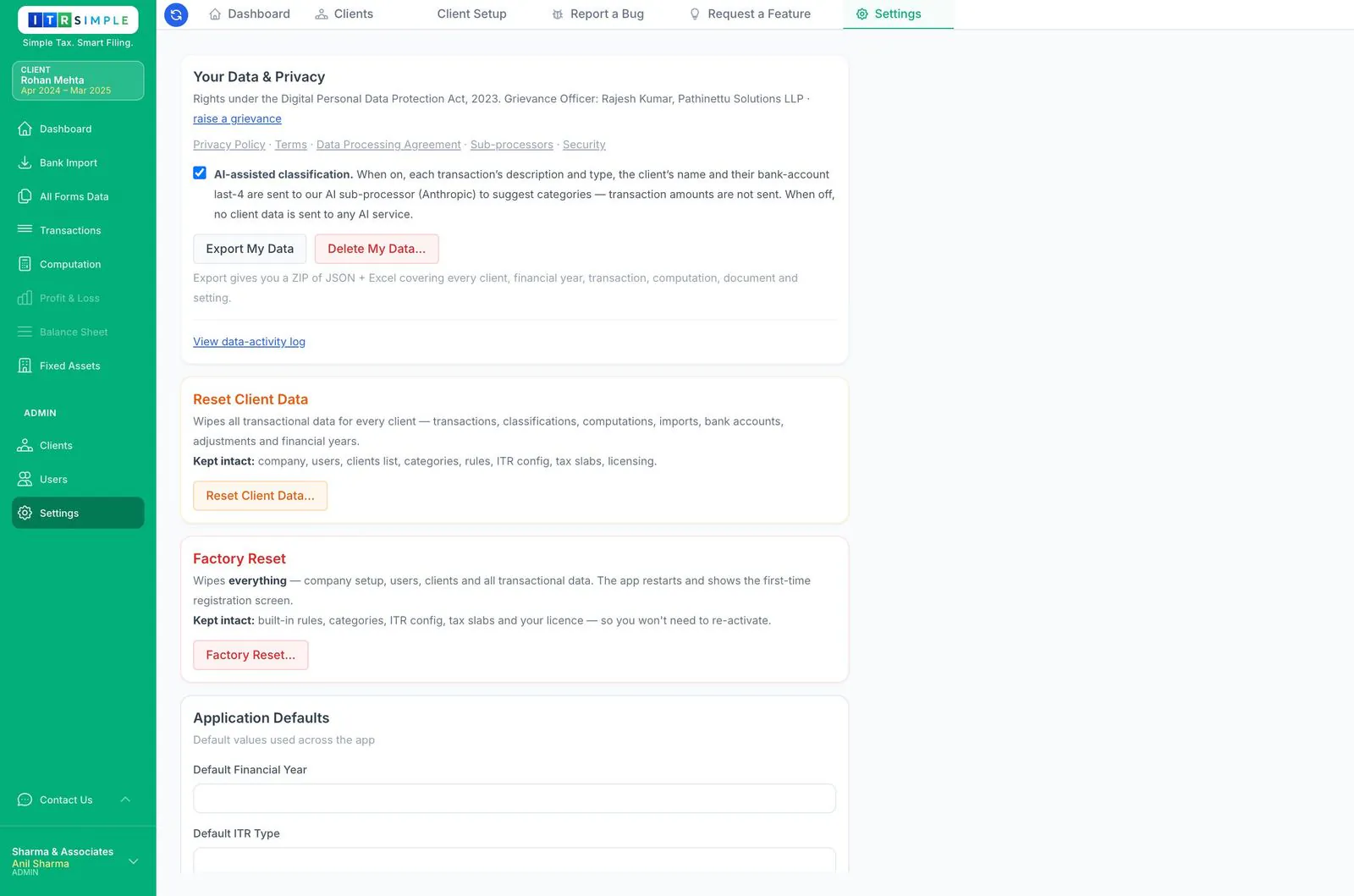
Your DPDP control panel, lower down the Settings tab. Turn AI-assisted classification on or off, Export My Data as a ZIP of JSON + Excel covering every client, year, transaction, computation, document and setting, or Delete My Data. Account deletion runs on a 30-day grace period, during which you can cancel; on the desktop app, confirming wipes the local database immediately. The data-activity log records who read or changed what, and raise a grievance reaches the Grievance Officer named on the page.
- Links to the full Privacy Policy, Terms, DPA, Sub-processors and Security pages.
- Deleted clients sit in a 30-day trash you can restore from, before they are purged for good.
- The AI toggle here is the same setting you first saw on the data notice - change it any time.
Rules
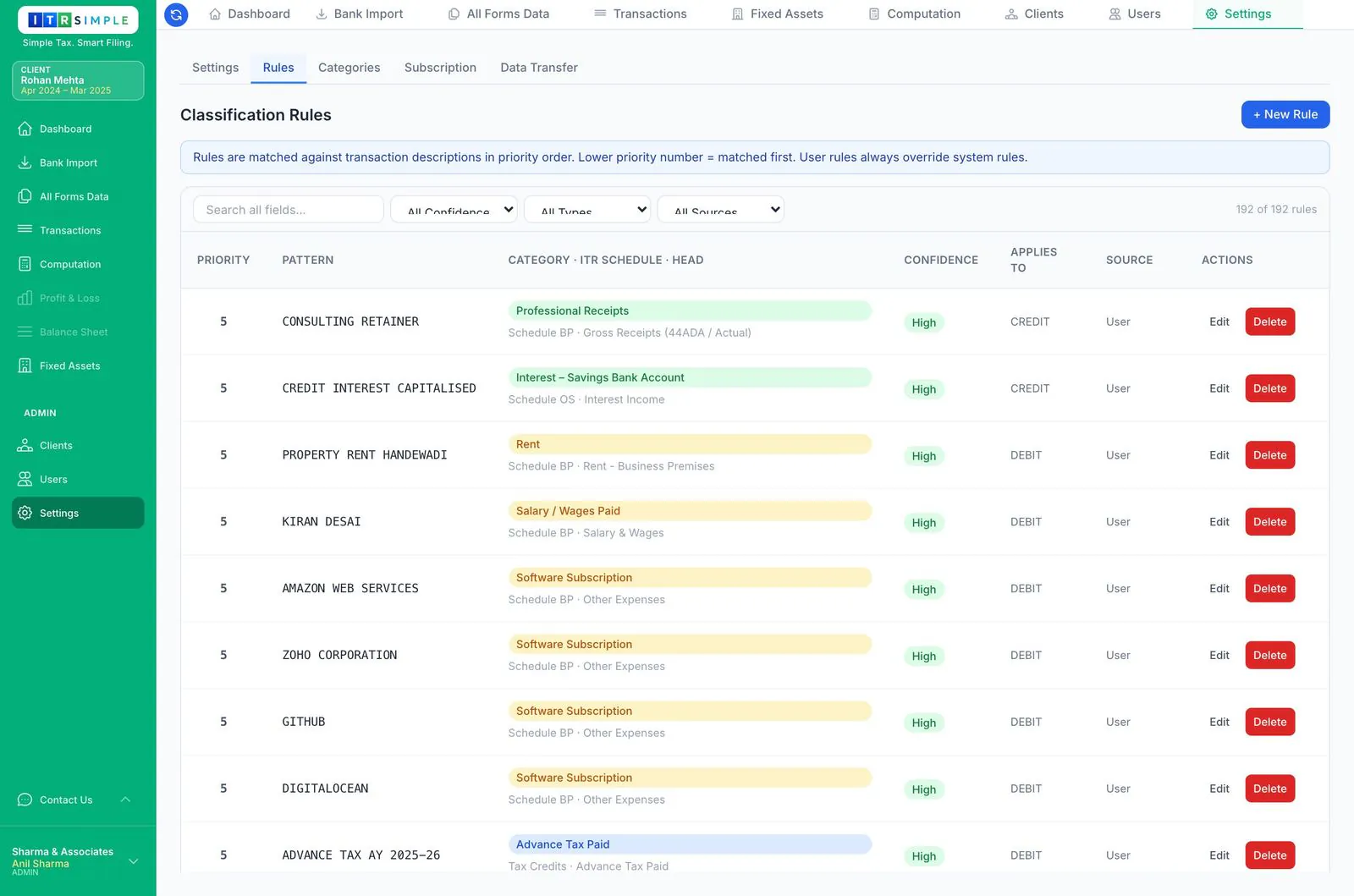
The classification engine's rulebook, on the Rules tab. Rules match transaction narrations in priority order - the lower the priority number, the earlier it is tried, and your own rules always override the community-synced system rules. Each rule maps a text pattern to a category (with its ITR schedule and head), a confidence, and an optional debit/credit restriction. Search and filter the full set, or add your own with + New Rule.
Categories
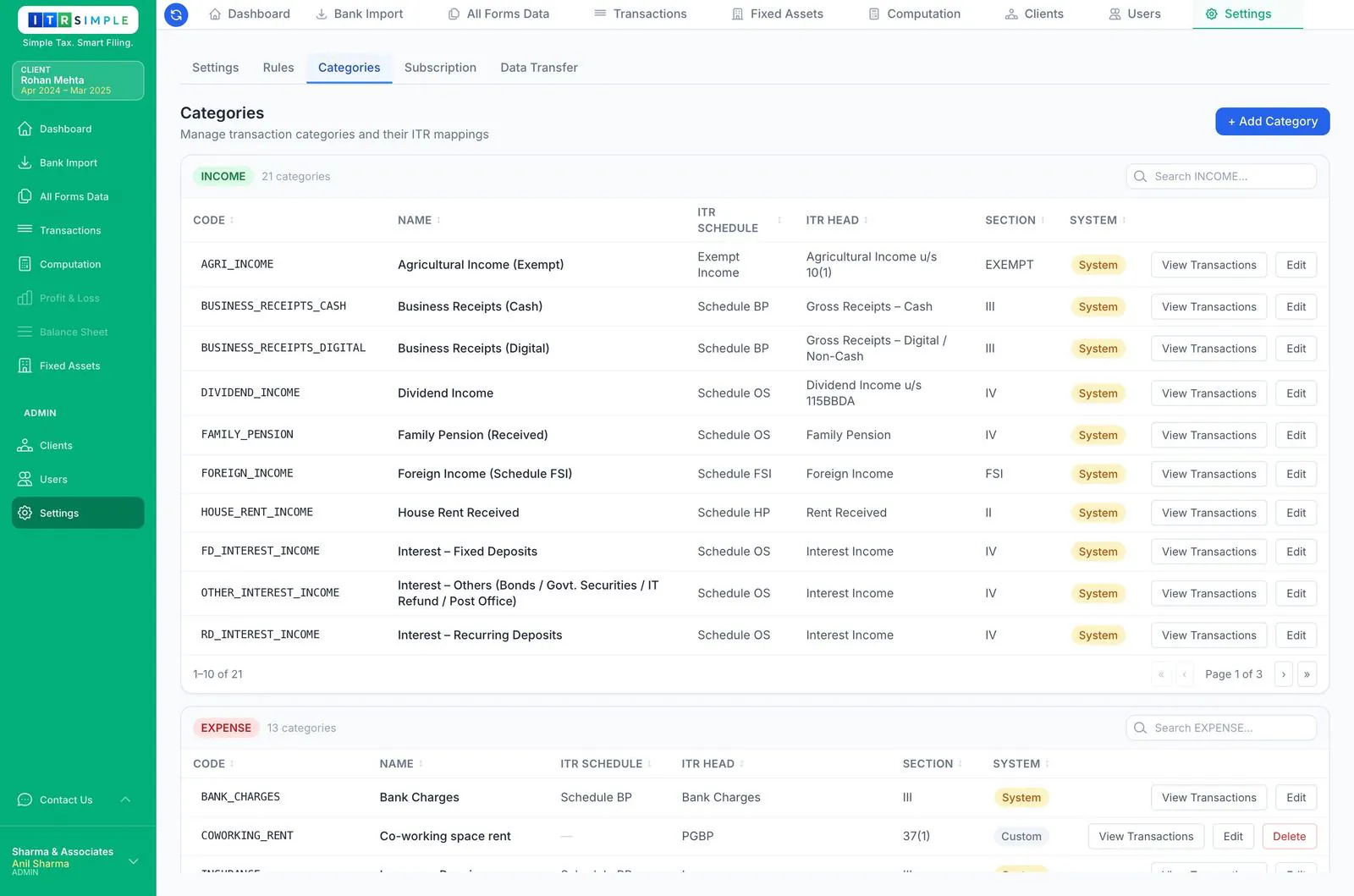
Every category a transaction can be classified into, on the Categories tab - grouped as Income, Expense, Deduction and more - each mapped to its ITR schedule, head and section. That mapping is what lets a classified transaction flow straight into the right line of the Computation statement. System categories are read-only; categories you add are marked Custom and can be edited or removed.
Subscription
Licensing is billed per client-per-financial-year, not per seat - so a two-person practice and a ten-person practice pay the same for the same book of work. The Subscription tab shows active vs pending licences, purchase history and overall account status, and the first client-year is free for every practice. On the desktop app this is also where a licence is activated on the machine.
Data Transfer
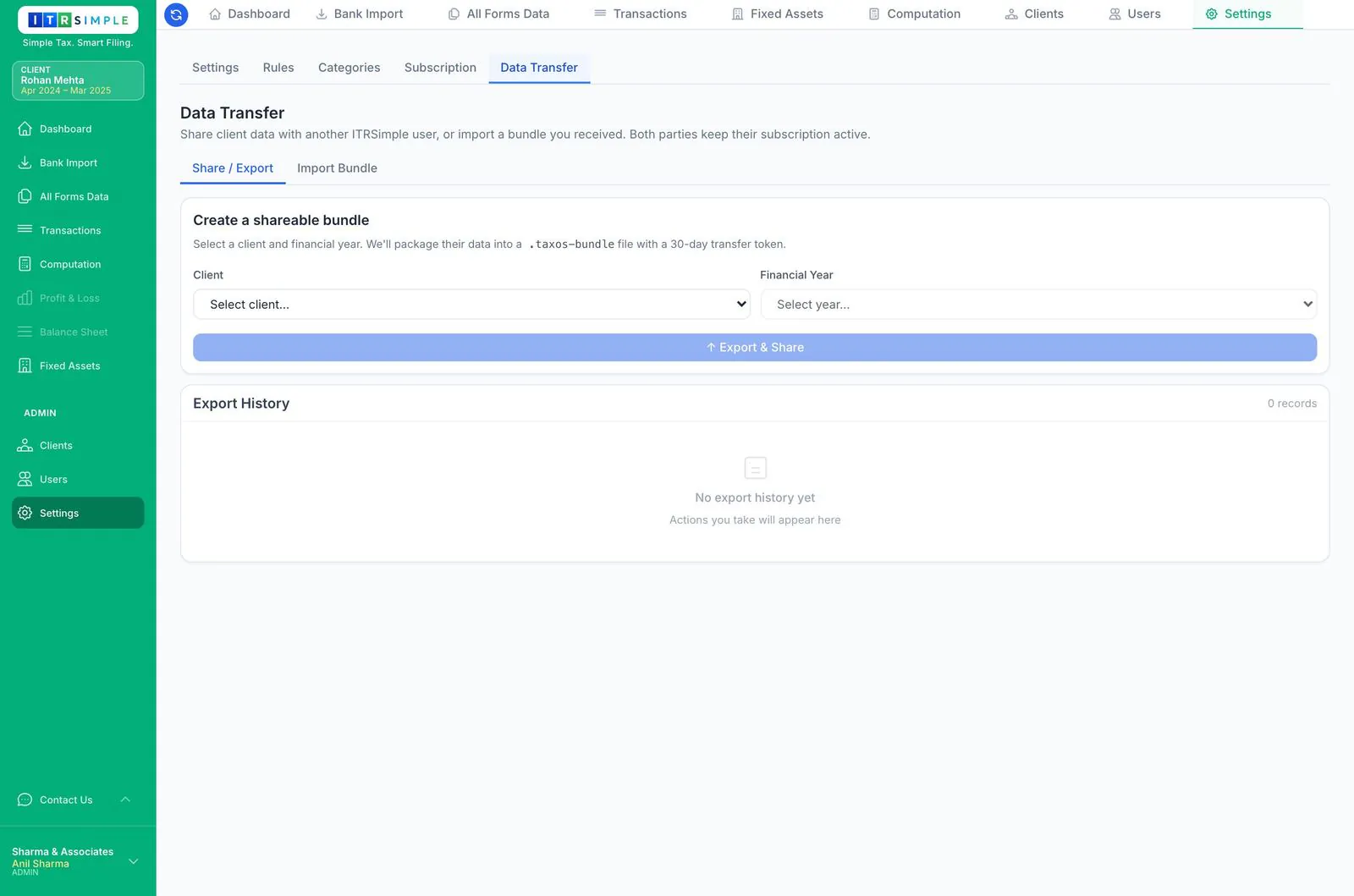
Move a client's full file - transactions, classifications, documents, computations - to another ITRSimple account as a .taxos-bundle file with a 30-day transfer token, on the Data Transfer tab. Useful when a client moves between CAs, or you are switching machines. Both sides keep their licence active, and an Export History records every bundle you create.
Users
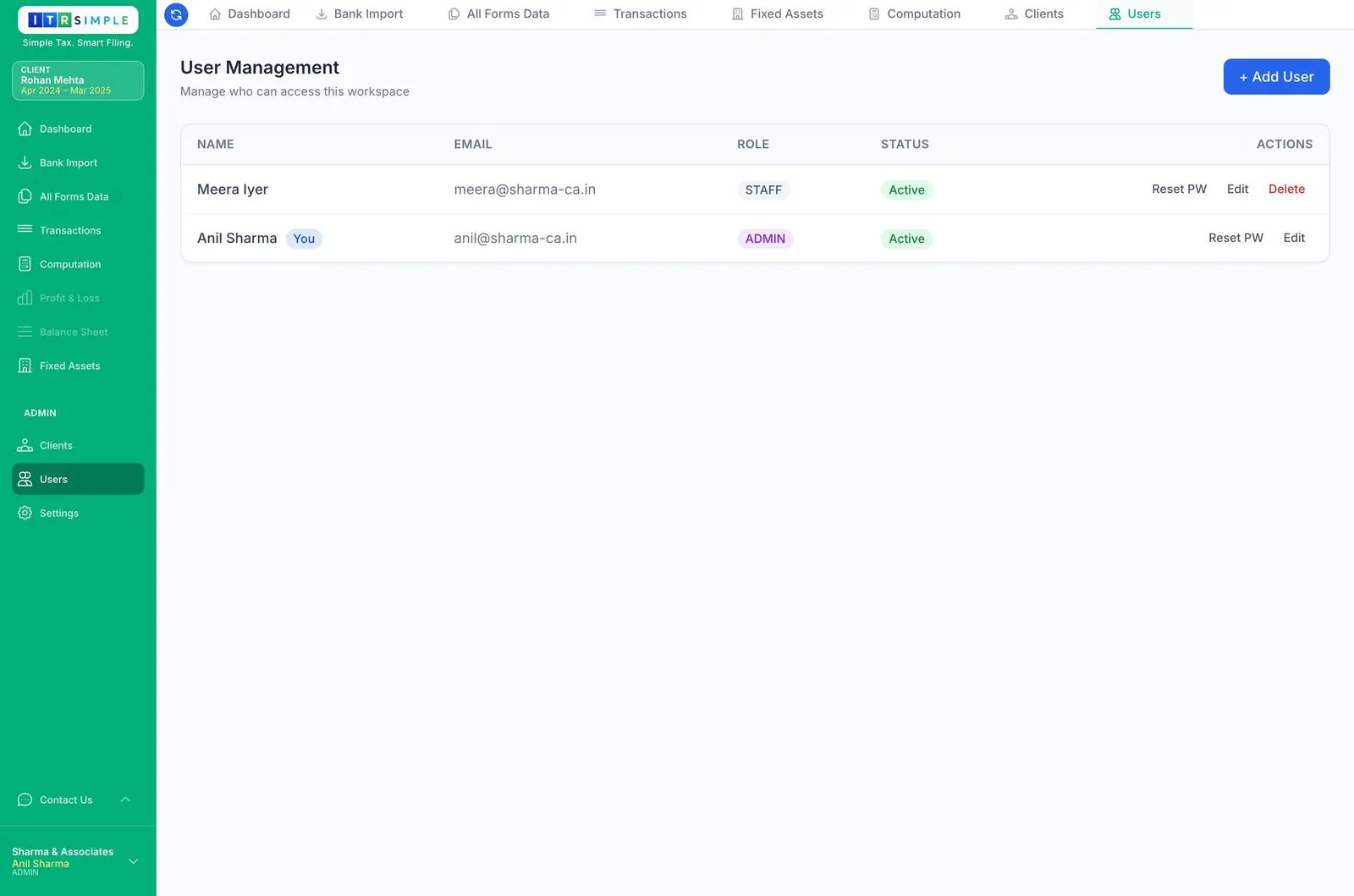
Manage who can sign in to the workspace and at what role - Admin or Staff. Admins can add users, reset any user's password, or edit their access from here. Your own row is marked You.
Report a Bug
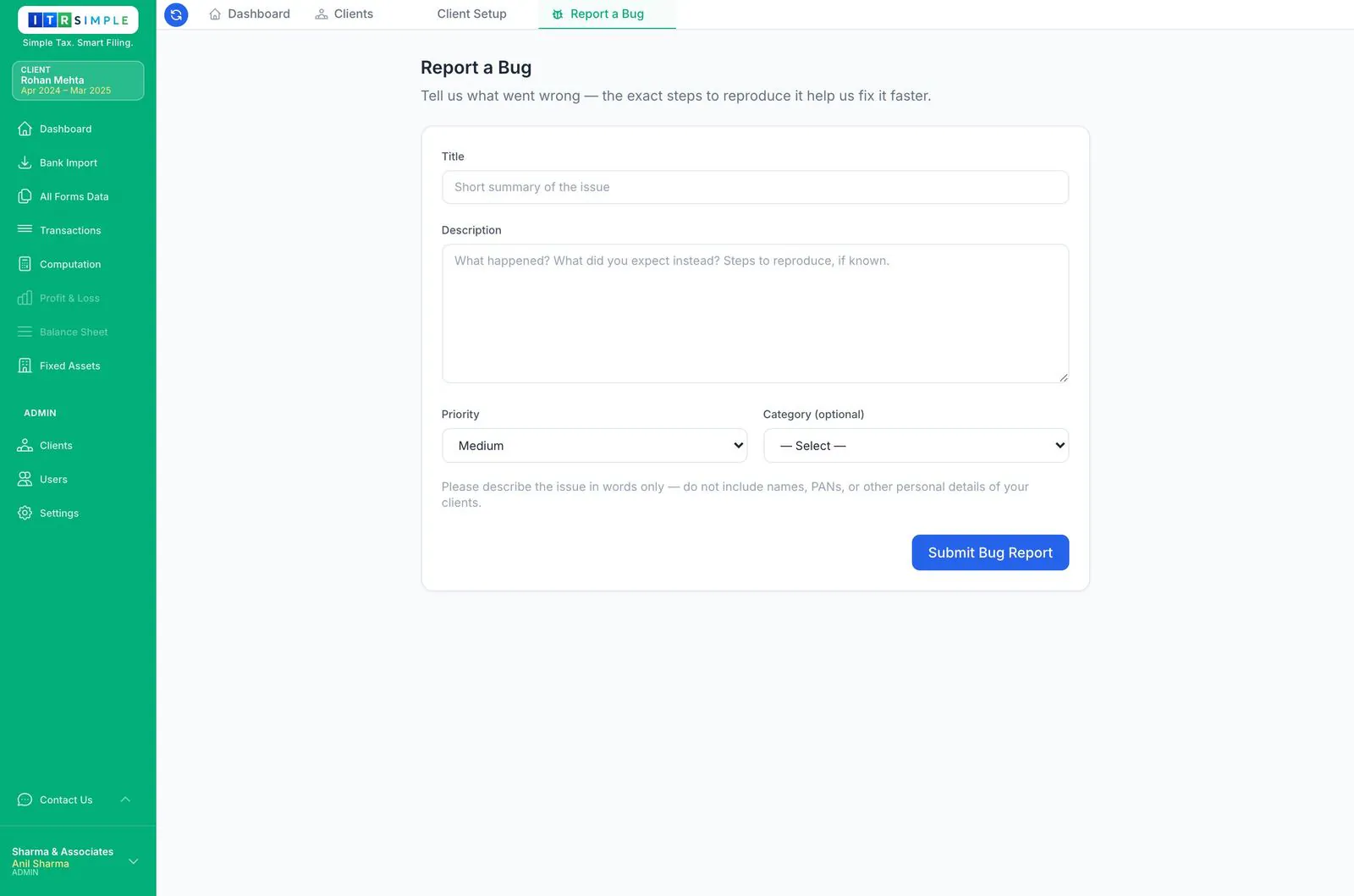
Found something broken? Open Contact Us in the sidebar and pick Report a Bug. Give it a title, describe what happened and what you expected, and set a priority - it goes straight to the team for triage. Reports are text only; please describe the issue in words and don't include client names, PANs or other personal details.
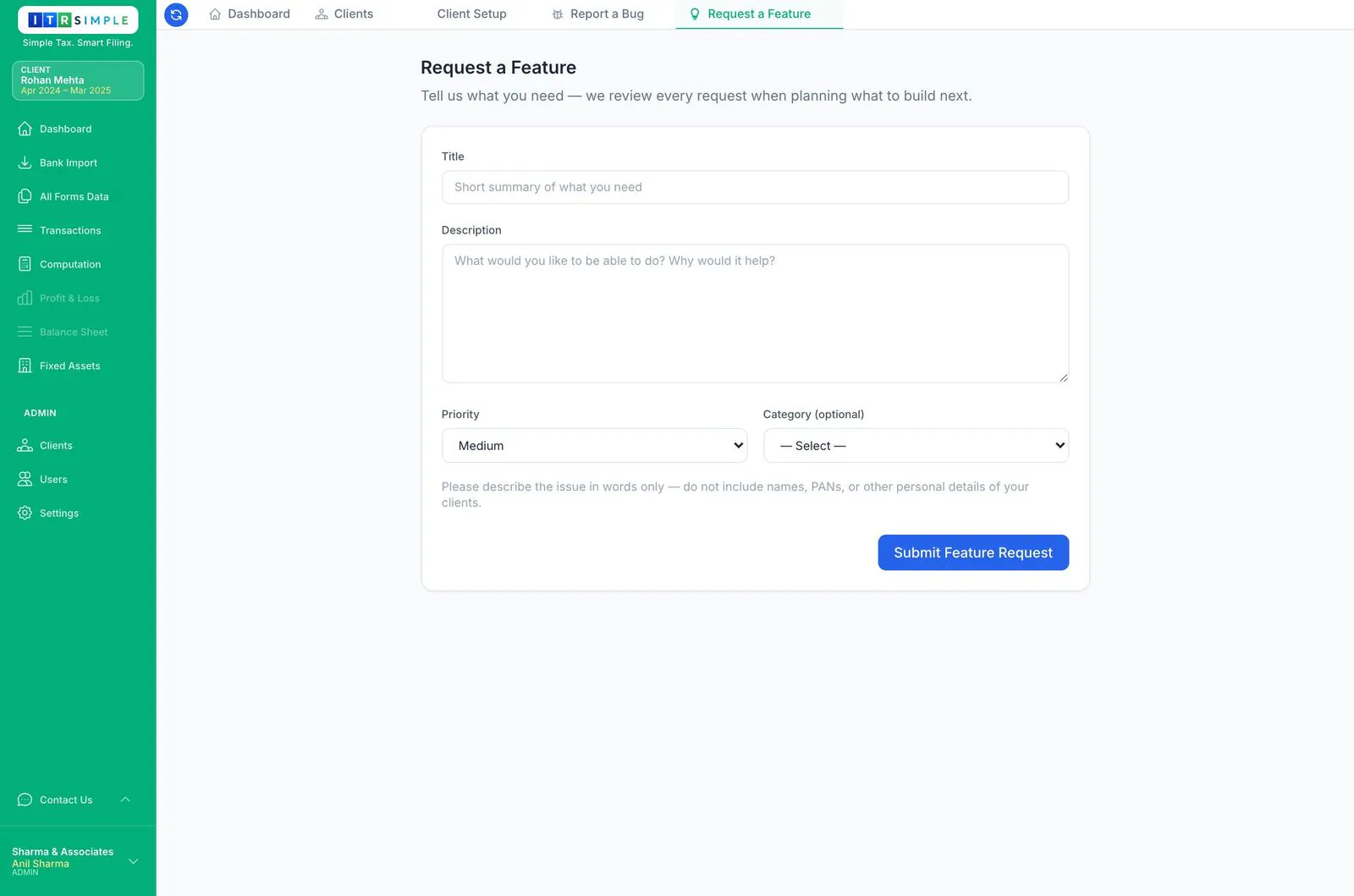
Request a Feature
Have an idea for what ITRSimple should do next? Contact Us → Request a Feature. Every request is reviewed when the team plans upcoming work. Same text-only rule - describe what you need and why it would help, without client details.